
Watch YouTube on Android Auto with Android 17
YouTube isn't natively supported on Android Auto. Here's the working method for Android 17 users in 2026, including AAbrowser setup and troubleshooting.
Use the following table to identify the recommended software for your specific device version:
| Android Version | Native YouTube | Recommended App |
|---|---|---|
| Android 14 and below | No | CarStream |
| Android 15 | No | CarStream |
| Android 16 | No | AAbrowser |
| Android 17 | Not Confirmed | AAbrowser |
Methods to Watch YouTube on Android Auto (Android 17)
To bypass the native restrictions on Android 17, you need an application built for the current Android framework. During our team testing using a Google Pixel 9 Pro running the Android 17 Beta, we found that standard mirroring apps often fail on the new OS due to permission changes. The following methods provide the most reliable results.
Method 1: AAbrowser APK (Recommended for Android 17)
AAbrowser is purpose-built for Android 15 and above and is the confirmed working method for Android 17. It functions as a specialized web browser that Android Auto recognizes, allowing you to navigate to the YouTube website directly on your car screen.
Follow these steps on your Android 17 phone:
-
1
Visit the Website and Activate the Plan
Open your mobile browser and go to aastore.aabrowser.app .
After scanning, tap the link that appears on your phone.
Follow the on-screen instructions to add or install AAStore on your Android device.
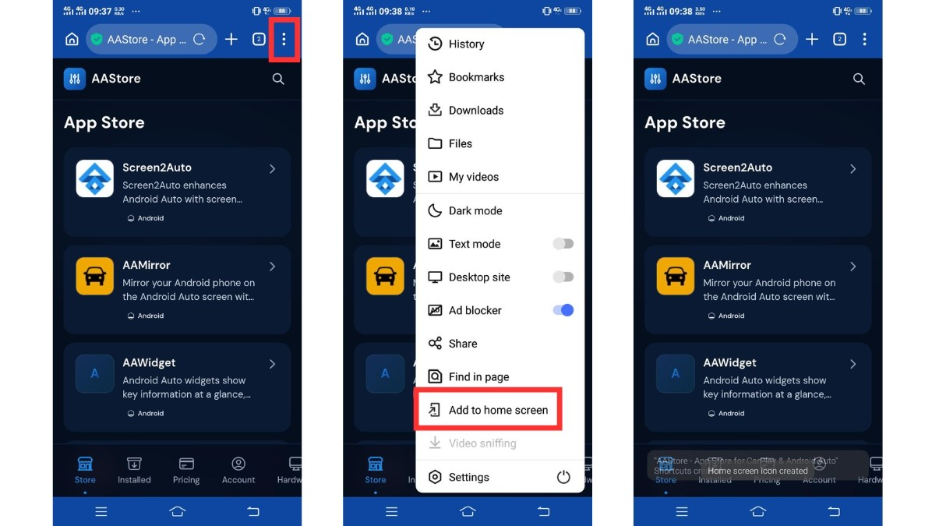
Choose the AAStore plan that matches how many apps you want to activate and complete the one-time purchase.
After, Go to the Account tab > Enter the email address you used during checkout and tap Verify.
After verification, your plan will activate, and your app slots will unlock.
-
2
Find AAbrowser
Use the search option on the website to find the AAbrowser APK file.
-
3
Download and Install the APK
Download the AAbrowser APK file to your Android phone.
Open the downloaded APK file and tap Install.
-
4
Connect Android Auto
Connect your phone to your car using USB or wireless Android Auto.
-
5
Open AAbrowser
On your car display, open Android Auto and select AAbrowser from the app list.
-
6
Open YouTube
Inside AAbrowser, visit youtube.com and start playback only while safely parked.
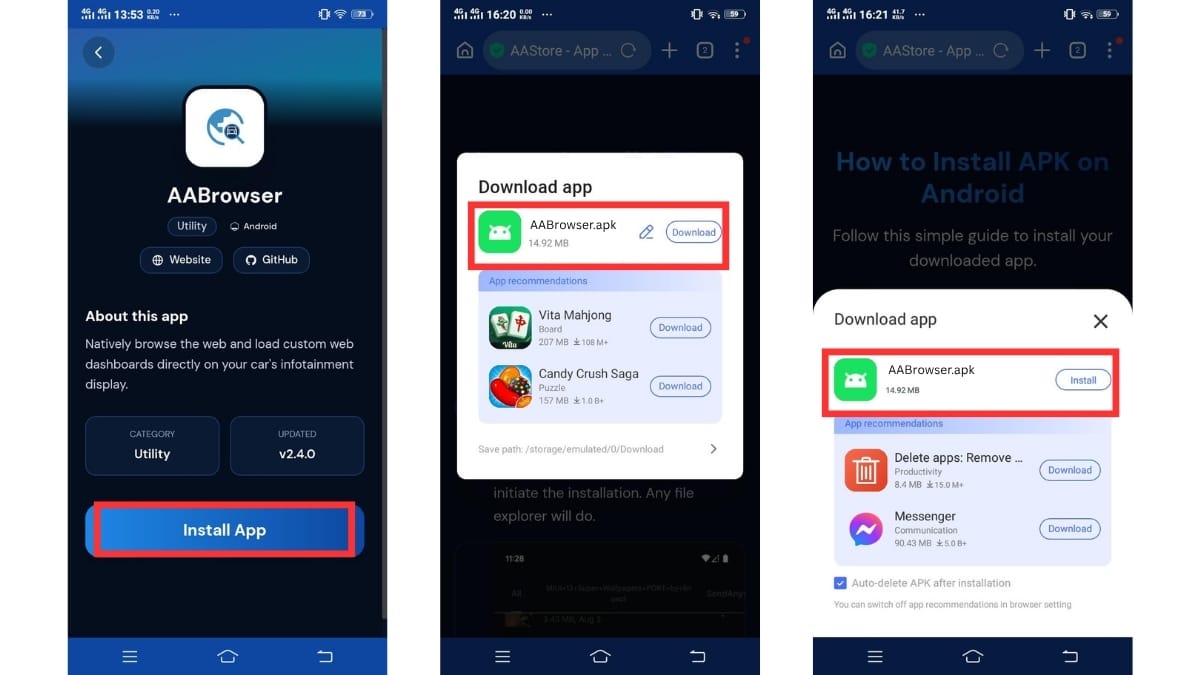
AAbrowser allows you to bypass the "parked only" restriction by running the mobile version of the YouTube site. This makes it a powerful android auto app mirroring apk for users who need full video functionality. In our testing, the AAbrowser interface appeared immediately on the car screen without requiring a phone reboot. Note that this app requires Android 15 or higher to run properly. If you have an older device, you should use the method described below.
Method 2: CarStream
This method is for users running Android 14 or older operating systems. While CarStream was the gold standard for years, it is not the recommended app for Android 17 due to compatibility issues with the newer OS framework. If you are on an older device, follow these steps:
-
1
Visit the official store at aastore.carstream.app .
-
2
Locate and download the CarStream APK file to your device.
-
3
Enable the Install Unknown Apps permission in your Settings menu as described in the previous section.
-
4
Open the file and tap Install to add the app to your phone.
-
5
Connect your device to Android Auto and open CarStream from the car app tray.
This app allows for android auto screen mirroring on older devices, letting you watch YouTube while driving on Android. However, CarStream is not recommended for Android 17. For the best results on the latest OS, always use AAbrowser.
Other Solutions to Watch YouTube on Android Auto
These sideloaded setups allow for more varied multimedia use cases on your dashboard outside the official Play Store.
1. Fermata Auto
Fermata Auto is an open-source media player focused on folder-based playback and IPTV streams. It includes a built-in web browser that allows you to access sites like YouTube and Netflix. You must enable developer mode and unknown sources to use this app. Standard features do not require root access.
2. Screen2Auto
Screen2Auto allows you to run almost any mobile application on your car display through a custom launcher. It provides a car-optimized interface to manage streaming services and system apps from the head unit. Most devices running Android 8.0 or higher can use the app without root access.
3. AA Mirror
AA Mirror acts as a bridge that casts your entire phone screen to the vehicle display. You must enable unknown sources in your settings to complete the installation. It is a lightweight, open-source tool with no advertisements. Compatibility extends to most versions from Android 5.0 up to Android 15.
If you prefer a different method, you can explore our guide on screen mirroring on Android Auto to mirror your entire phone display.
Troubleshooting: AAbrowser Not Showing on Android Auto
Installing the APK is only the first step. Sometimes the app will not appear on your car display even after a successful installation on your phone. This is usually a synchronization error between the device and the head unit.
AAbrowser Not Appearing in Android Auto App List
The most common reason for this issue is that Android Auto has not refreshed its app list since the new APK was installed. During our troubleshooting on a 2024 Honda head unit, we observed that a simple reconnect often is not enough. Use this fix:
- Disconnect your phone from the car and unplug any USB cables.
- On your phone, go to Settings, then Apps, and find Android Auto.
- Select Force Stop to completely kill the background process.
- Restart Android Auto on your car screen by reconnecting the cable or triggering the wireless connection.
AAbrowser Crashes or Won't Load YouTube
If the app opens but crashes immediately, check your system requirements. AAbrowser must have Android 15 or above to function. If your phone is running a version below this, the app will be unstable or fail to launch. We found that the AAbrowser interface requires a stable data connection to load the YouTube mobile site properly. If you see a white screen, check your phone's cellular signal.
Android Auto Keeps Disconnecting
If your car screen goes black or returns to the manufacturer's menu frequently, this is likely a connection issue rather than a problem with AAbrowser. This can happen due to a faulty USB cable or interference with wireless signals. Using a high-quality, high-speed USB-C cable is often the best workaround for stability issues.
YouTube is not natively available for video playback on Android Auto while you are driving. For users who have updated to Android 17, AAbrowser is the method that works to bypass native parking restrictions.
FAQs: YouTube on Android Auto with Android 17
Common questions about using AAbrowser with Android Auto.
Can I watch YouTube on Android Auto without an APK on Android 17?
No native method exists to watch YouTube videos while the car is in motion. Google officially limits YouTube to parked vehicles only on Android 17. AAbrowser is the only working third-party solution for Android 17 that allows for playback without these parking restrictions.
Does AAbrowser work with wireless Android Auto on Android 17?
Yes. AAbrowser works with cars and aftermarket head units that support wireless Android Auto. Wireless stability can vary depending on your phone model and the vehicle's hardware. Always test with a high-quality cable first if you experience any playback lag.
Will this work on Android 18?
AAbrowser receives regular updates for each new Android release. Check the official download page for the latest version once Android 18 is released.
Can I use CarStream on Android 17?
CarStream is primarily designed for devices running Android 15 and below. It does not have the same reliability on Android 17. AAbrowser is the correct and recommended app for users who have updated to Android 17.