How to Mirror Your Phone to Your Car Screen (2026)

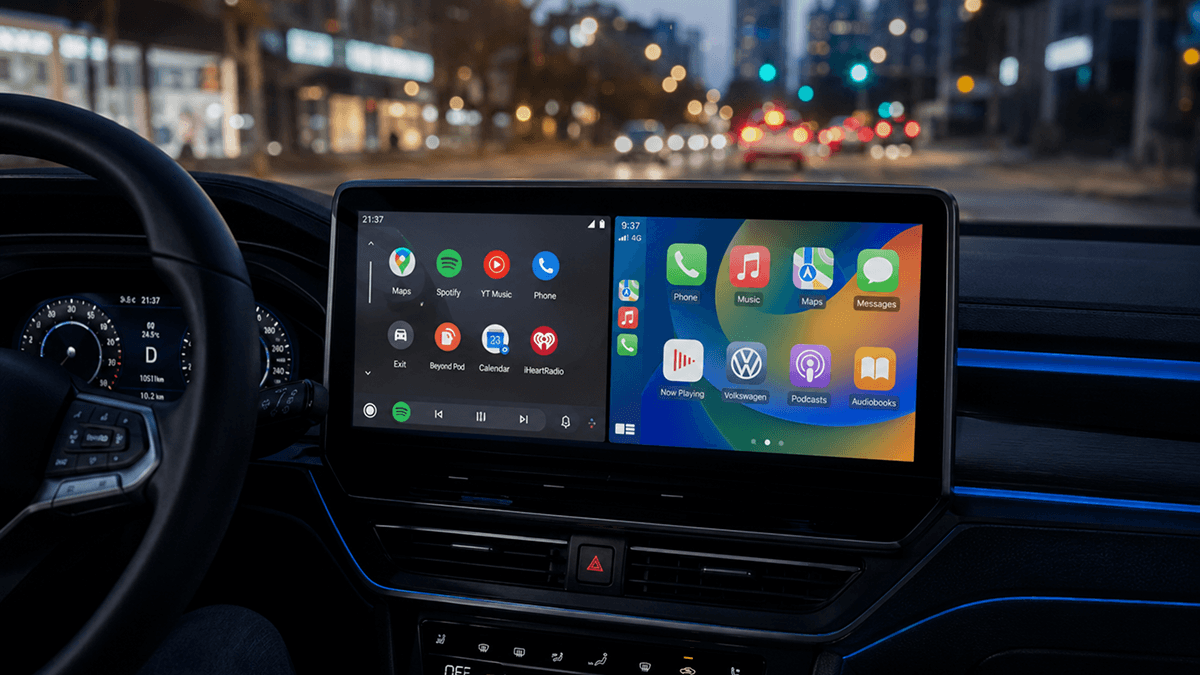
Plugging in your phone only to find restricted apps or a blank display is frustrating. Whether you want to watch YouTube or use a specific app, safety blocks often stand in the way. Fortunately, there are reliable ways to mirror your phone to your car screen. This guide covers the best methods to mirror your phone to your car screen in 2026 - from standard wired and wireless connections to unlocking full Android Auto screen mirroring for video while parked. iPhone users will also find a complete walkthrough for connecting via CarPlay.
Does Your Car and Phone Support Mirroring? (Quick Check)
| PHONE TYPE | ANDROID VERSION | RECOMMENDED METHOD |
|---|---|---|
| Android | Android 9 to 15 | Android Auto + CarStream |
| Android | Android 16+ | Android Auto + AAbrowser |
| iPhone | Any (iPhone 7+) | Apple CarPlay |
| Android or iPhone | Car with no AA/CarPlay | Wireless adapter or third-party app |
Android Auto: This requires a phone running Android 9.0 or higher. Your car must either have Android Auto built-in from the factory or be equipped with an aftermarket head unit that supports the platform.
Apple CarPlay: You will need an iPhone 7 or later. Most cars manufactured from 2017 onward include CarPlay support by default.
No Native Support: If your vehicle lacks both Android Auto and Apple CarPlay, you can still use a wireless adapter or specific third-party mirroring apps.
Once you have identified the method that fits your hardware, follow the detailed steps below to get connected.
How to Mirror Android Phone to Car Screen
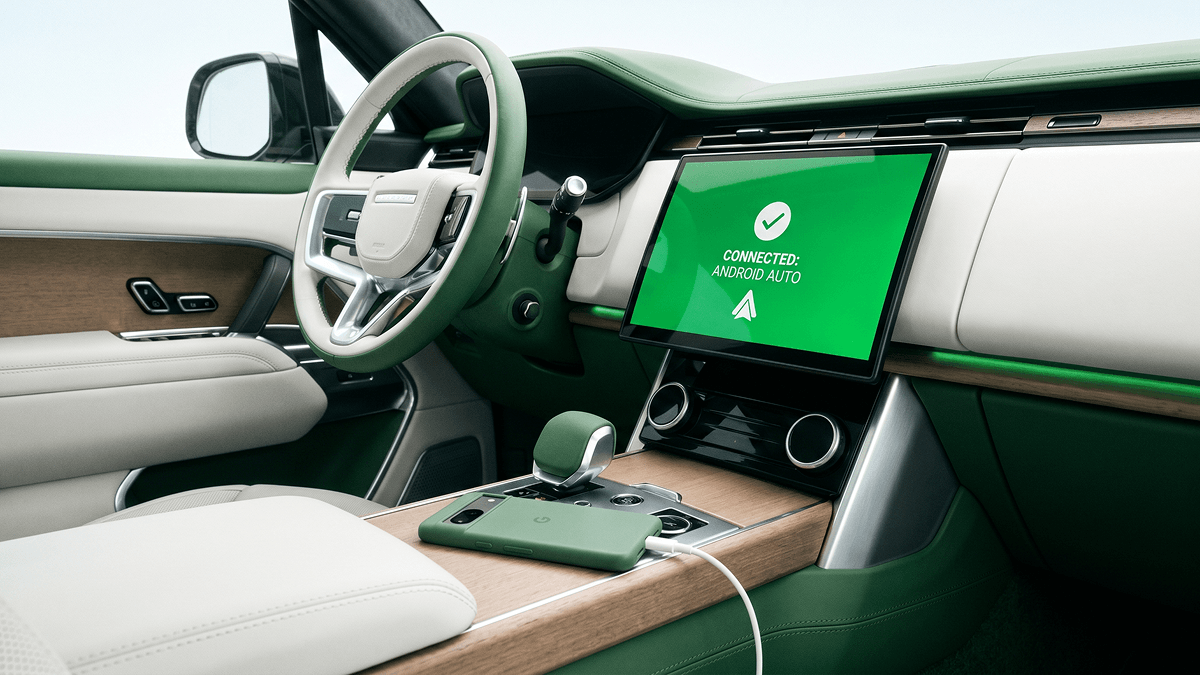
For Android users, an android auto screen mirror setup is the standard way to bridge the gap between your phone and your car display. Depending on whether you prefer the stability of a cable or the convenience of a cable-free experience, you can choose between wired and wireless methods.
Method 1: Wired Android Auto (Recommended Starting Point)
Wired Android Auto is the most reliable starting point for any Android phone running Android 9.0 or higher. It provides a stable data connection and ensures your phone stays charged during long trips.
-
1
Use a USB data cable: This is the most important step. Avoid using charge-only cables. Use the high-quality data cable that came with your phone or a verified high-speed replacement.
-
2
Power on the car: Ensure your vehicle is running so the infotainment head unit is fully powered on.
-
3
Connect to the data port: Plug your phone into the car's USB port. Look for the port labeled with a phone or data icon.
-
4
Grant permissions: Watch your phone screen for a prompt. Tap "Allow" when Android Auto requests permission to access your device.
-
5
Launch: Tap the Android Auto icon on your car's head unit display to begin.
Method 2: Wireless Android Auto
If you want to mirror phone to car screen setups without fumbling with cables, wireless android auto is the solution. This method works on phones running Android 10 and higher.
-
1
Pair Bluetooth: Go to your phone's Bluetooth settings and pair it with your car's infotainment system.
-
2
Enable Wireless: On your car's head unit, go to the settings menu and ensure the wireless Android Auto connection is enabled.
-
3
Accept the Prompt: The head unit will send a prompt to your phone. Accept the connection request to link the two devices.
-
4
Automatic Launch: Android Auto will now launch wirelessly, allowing your phone to stay in your pocket or bag.
Method 3: Unlock App Mirroring and YouTube on Android Auto
Standard android auto screen mirroring intentionally restricts apps like YouTube and web browsers for safety. However, if you want to watch youtube on android auto while you are parked, you can bypass these restrictions using a third-party APK from AAStore.
To ensure your success, we have verified these methods using a Xiaomi Redmi A3 across several software versions. These real-world tests confirm that you can effectively mirror phone to car content using the following versions:
- Android 15 Verification: Tested stable on the Xiaomi Redmi A3 using CarStream v2.0.5.
- Android 16 Verification: Tested stable on the Xiaomi Redmi A3 using AAbrowser v2.0.0.
For Android 15 and Below: CarStream
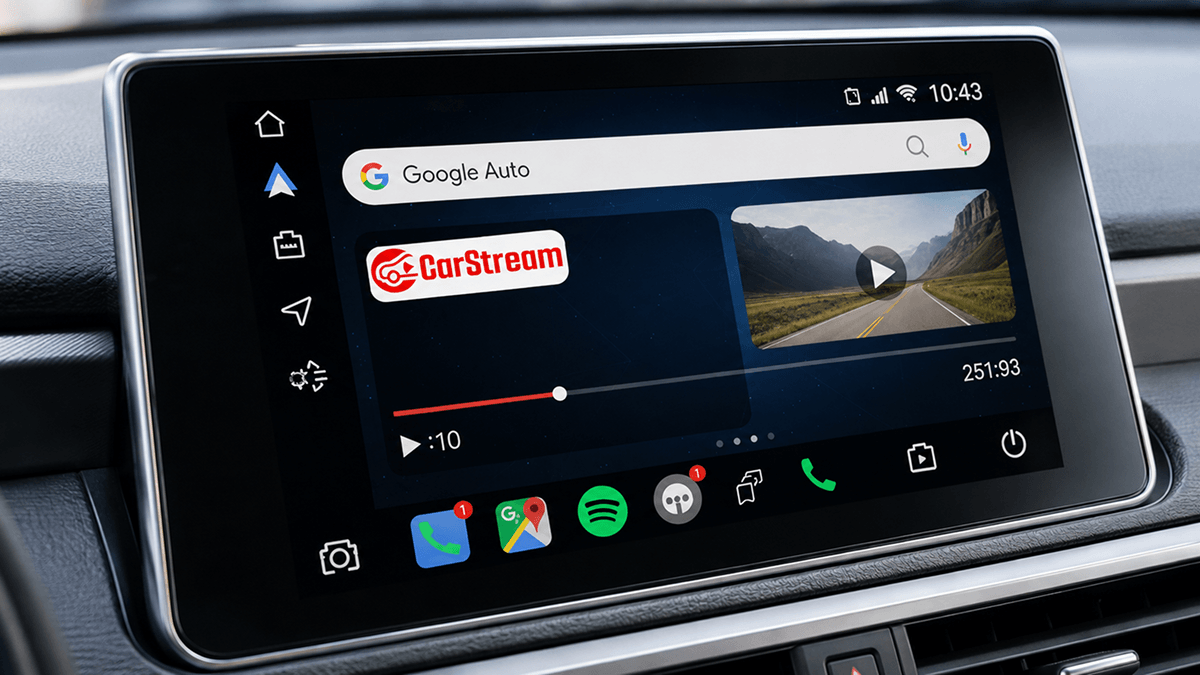
CarStream is a dedicated YouTube app built specifically for the Android Auto framework.
-
1
Download AAStore: Visit https://aastore.carstream.app/ to download the AAStore app.
-
2
Install CarStream: Open AAStore on your phone, find CarStream (v2.0.5, v2.0.6 or v2.0.7 depending on your OS), and tap install.
-
3
Enable Unknown Sources: If prompted by your phone's security settings, allow the installation of apps from unknown sources.
-
4
Connect: Connect your phone to Android Auto using a wired or wireless connection.
-
5
Launch: CarStream will appear in your Android Auto app launcher.
For a more detailed walkthrough of the installation process, you can also see our guide on how to set up CarStream on Android Auto
For Android 16 and Above: AAbrowser
Users who have upgraded to Android 16 may find that traditional mirroring apps are blocked by new operating system permission restrictions. AAbrowser android auto was created to solve this problem. It uses a browser-based approach to provide YouTube access, web browsing, and full android auto app mirroring.
-
1
Get AAbrowser: Download the latest version (v2.0.0) from AAStore at https://aastore.carstream.app/.
-
2
Install and Connect: Follow the same installation steps as you would for CarStream.
-
3
Navigate: Open AAbrowser from your car's app launcher. You can now navigate to YouTube or any other website you wish to mirror.
How to Mirror iPhone to Car Screen (Apple CarPlay)
For iPhone users, the apple carplay screen mirror experience is highly integrated and consistent for all models from the iPhone 7 onward.
Wired CarPlay
-
1
Cable Choice: Use a high-quality Lightning to USB cable, or a USB-C cable if you have an iPhone 15 or newer.
-
2
Plug In: Connect your iPhone to the USB port in your car marked with a CarPlay or smartphone icon.
-
3
Confirm: A setup prompt will appear on both your car display and your iPhone. Tap to confirm.
-
4
Load: The CarPlay home screen will automatically load on your car display.
Wireless CarPlay
Carplay wireless is available on the iPhone XS, iPhone XR, and all later models.
-
1
Enable Bluetooth and Wi-Fi: Ensure both Bluetooth and Wi-Fi are turned on in your iPhone settings.
-
2
Pairing: Pair your iPhone to the car via Bluetooth.
-
3
Select Wireless: On your car's head unit, navigate to the CarPlay settings and select the wireless option.
-
4
Automatic Connection: Once the initial pairing is complete, your iPhone will connect automatically.
If your car only supports wired CarPlay, you can add wireless functionality by using an adapter from https://shop.aahacks.com/.
What If Your Car Doesn't Support Android Auto or CarPlay?
If you own an older vehicle or a model that lacks smartphone integration, you have two main options:
Option 1: Aftermarket Wireless Adapter:
- A small plug-in device can add Android Auto and CarPlay functionality to many factory head units made from 2014 onward. Find hardware recommendations at https://shop.aahacks.com/.
Option 2: Third-Party Screen Mirroring Apps:
For basic Android mirroring, apps like Screen2Auto or AA Mirror can screen mirror android to car displays with fewer restrictions. These tools are primarily intended for use while the vehicle is parked.
Troubleshooting: When Phone Mirroring Won't Work
- Swap the cable: Many connection problems are caused by low-quality or charge-only cables. Always use a high-speed data cable.
- Check the port: Ensure you are using the designated data port, not just a charging port.
- Enable Developer Mode: To see sideloaded apps like CarStream, you must enable Android Auto developer mode. Open Android Auto settings on your phone, scroll to "Version," and tap it ten times until developer mode is unlocked.
- Version Check: If you are on Android 16 and CarStream will not appear, you must switch to AAbrowser due to system-level permission changes in the newer OS.
If you find yourself running into connection problems, our Android Auto troubleshooting guide is always available to help you find a fix
Which Method Is Right for You?
If you drive regularly and want YouTube or app access during parking breaks, CarStream (Android 15 and below) or AAbrowser (Android 16 and above) is the most complete solution. If you only need navigation and music, standard wired Android Auto is all you need. iPhone users are best served by native CarPlay - and if your car does not support it, a wireless adapter from shop.aahacks.com is the cleanest upgrade.
FAQs
Common questions about Mirror iPhone and Android Phone to Car Screen
Can I mirror my full phone screen to my car?
Official Android Auto and Apple CarPlay do not provide a 1:1 mirror of your phone screen for safety reasons. However, you can use third-party apps like Screen2Auto or AA Mirror while parked to achieve full android auto app mirroring.
Can I watch YouTube on Android Auto?
Yes, you can watch youtube on android auto by using a third-party APK from AAStore. For phones running Android 15 or below, use CarStream. For those on Android 16 or above, use AAbrowser. Remember that video playback is restricted to when the car is parked.
Does CarStream work on iPhone?
No. CarStream is an Android-only application. iPhone users should use the native features provided by Apple CarPlay.
What Android version do I need for Android Auto?
Android Auto requires Android 9.0 or higher. For wireless android auto, your phone must be on Android 10 or higher. For the best experience with CarStream, Android 12 through Android 15 is recommended. Android 16 users should use AAbrowser.
My car doesn't have Android Auto or CarPlay. What can I do?
You can use a wireless CarPlay and Android Auto adapter to add these features to your existing screen via a USB or HDMI port.