Carstream on Android 14: Does It Work? (2026)

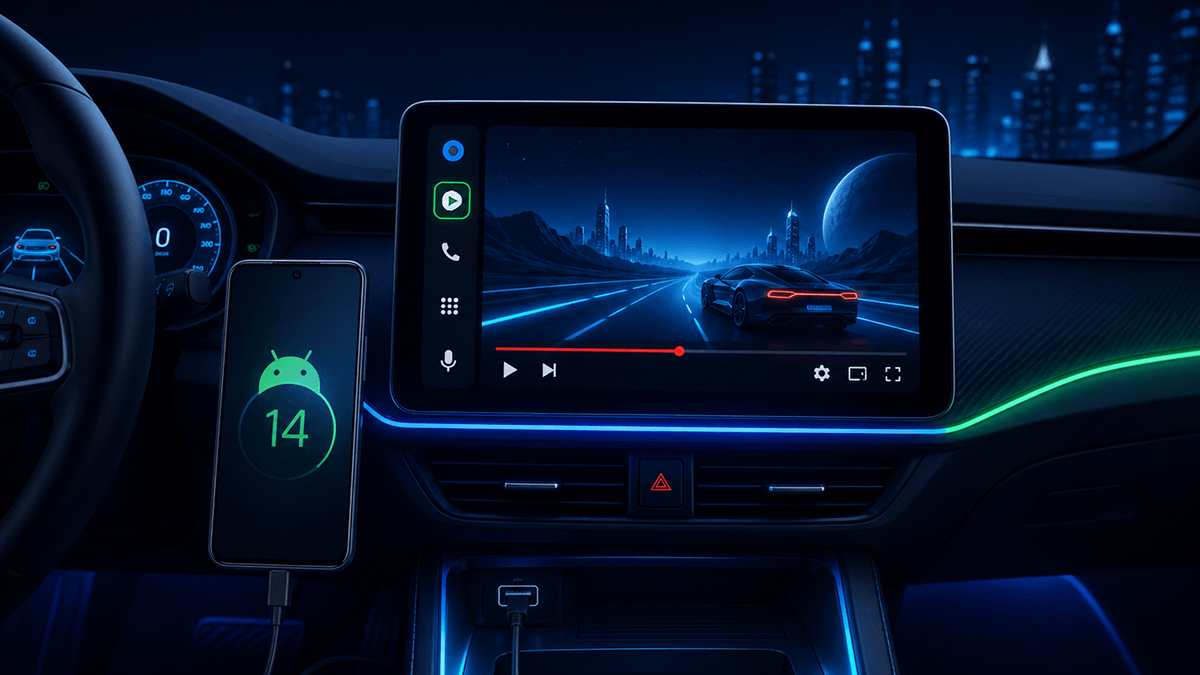
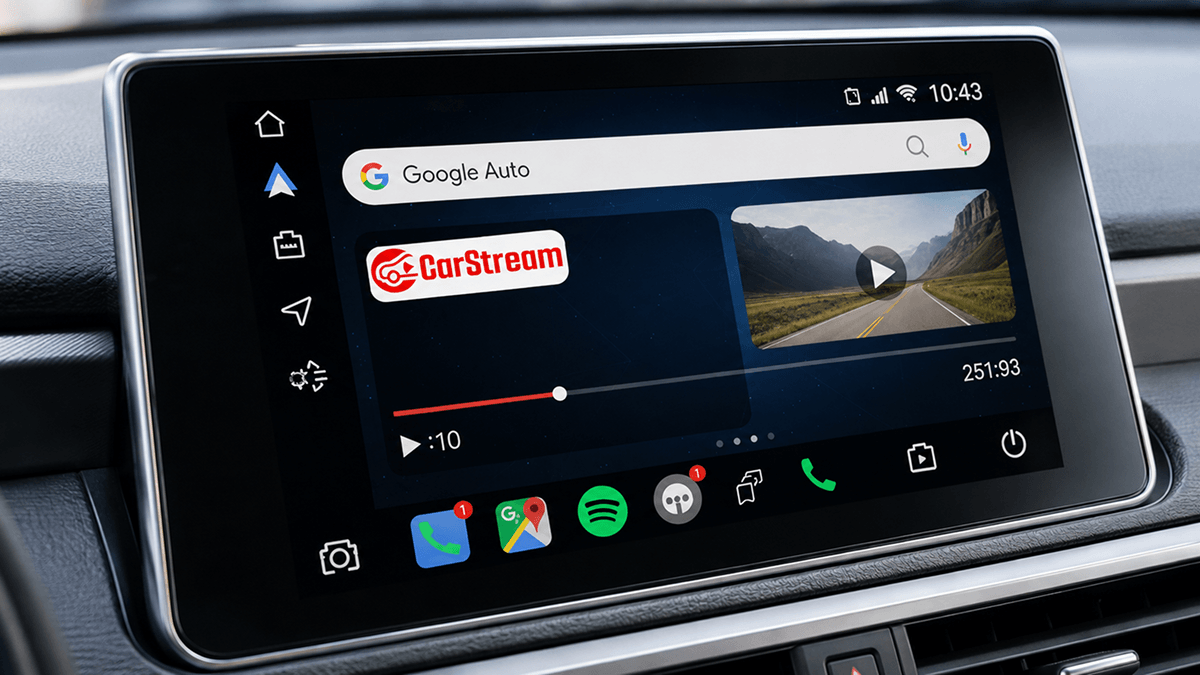
Yes - Carstream works on Android 14 with legacy support. YouTube mirroring, screen mirroring, and app mirroring are all functional. This guide covers the right APK version, known bugs, device-specific workarounds, and a full setup guide.
Quick Answer
Which Carstream APK Version to Use on Android 14
Recommended - v2.0.7 Latest - Best stability on Android 14.
Supported - v2.0.6 - Works on Android 14.
Minimum - v2.0.5 - Minimum for Android 14.
Not supported - v2.0.4 and below - Do not use on Android 14.
Compatibility at a Glance
Always download the latest APK from aastore.carstream.app to ensure you have the most up-to-date version.
Known Issues on Android 14
1. Wireless Android Auto drops connection intermittently
Carstream on Android 14 has an ongoing wireless Android Auto stability issue. The connection drops during active mirroring sessions and requires manual reconnection from the head unit. This is not fixed in v2.0.7 and no fix is planned for Android 14.
Workaround: Use a wired USB connection for stable sessions on Android 14. This eliminates the wireless drop entirely.
2. Carstream disappears from Android Auto after system update
Android 14 system updates frequently reset the Android Auto Developer Mode whitelist. Carstream disappears from the Android Auto launcher without warning after an OS update.
Fix: Open Android Auto, go to Settings, About, and tap the version number 10 times to re-enable Developer Mode. Restart Android Auto and Carstream will reappear.
3. Overlay permission reset after Android 14 security patch
Android 14 security patches periodically reset the Display over other apps permission for sideloaded APKs. Carstream appears in Android Auto but mirroring does not work after the reset.
Fix: Go to Settings, Apps, Carstream, and re-enable Display over other apps. This may need to be repeated after each Android 14 security update.
4. Battery optimization removes Carstream from Android Auto
On devices with aggressive battery management - OnePlus, Huawei, some Samsung - Android 14 kills Carstream's background process, removing it from the Android Auto active app list after inactivity.
Fix: Go to Settings, Battery, Battery Optimization. Find Carstream and set it to Don't optimize. Do the same for Android Auto.
Device-specific Workarounds on Android 14
All devices - Wireless Android Auto Wireless connection drops with Carstream on Android 14Carstream's wireless Android Auto connection is unstable on Android 14. This is a known legacy issue with no fix planned.
-
1
Connect via USB cable instead of wirelessly for stable Carstream sessions on Android 14
-
2
If a wireless drop occurs, reconnect from your car's head unit Android Auto screen
-
3
Toggling wireless Android Auto off and back on in your head unit settings can help re-establish a dropped connection
All devices - After OS update Carstream not showing after Android 14 update Android 14 updates reset Developer Mode and overlay permissions for sideloaded apps. This is the most common reason Carstream stops working after an OS update.
-
1
Open Android Auto, go to Settings, About
-
2
Tap the version number 10 times to re-enable Developer Mode
-
3
Go to Settings, Apps, Carstream and re-enable Display over other apps
-
4
Force-stop Android Auto then reopen it - Carstream will reappear
OnePlus / Huawei / Samsung Battery optimization removes Carstream from Android Auto Aggressive battery management on these devices kills Carstream's background process on Android 14, removing it from the Android Auto launcher after inactivity.
-
1
Go to Settings, Battery, Battery Optimization
-
2
Find Carstream and set to Don't optimize or No restrictions
-
3
Find Android Auto and apply the same setting
-
4
On Huawei: also disable App Launch management for both apps in Settings, Apps, App Launch
All devices - Planning to upgrade OS What happens to Carstream when you upgrade Android versions Carstream continues to work when upgrading from Android 13 to Android 14. However, if you upgrade to Android 15, Carstream will stop working entirely.
-
1
Upgrading to Android 15: Carstream will not work - you will need to switch to AAbrowser, available at https://aastore.carstream.app/
-
2
Upgrading to Android 16: Carstream will not work - you will need to switch to AAbrowser , available at https://aastore.carstream.app/
-
3
Check your Android version before upgrading: Settings, About phone, Android version
More Compatibility Guides
Full Android compatibility overview - all versions
SetupHow to set up Carstream on Android Auto from AAstore
Android 16CarStream on Android 16 - Use AAbrowser
Android 15CarStream on Android 15 - Use CarStream
Android 17CarStream on Android 17 - Use AAbrowser
How to Set up Carstream on Android 14
Follow these steps for a clean install on Android 14. Check the workarounds section above for device-specific steps.
-
1
Enable installs from unknown sources: Go to Settings, Apps, find your file manager or browser, and enable Install unknown apps.
-
2
Download Carstream APK: Download from https://aastore.carstream.app/. Do not download from any other source.
-
3
Install the APK: Open your file manager, tap the downloaded APK, and tap Install. Tap Install anyway if Android shows a security warning.
-
4
Enable Android Auto Developer Mode: Open Android Auto, go to Settings, About, and tap the version number 10 times until Developer Mode activates. Android 14 updates reset Developer Mode. Repeat this step after any OS update if Carstream disappears from Android Auto.
-
5
Grant overlay permission: Launch Carstream and tap Allow when the Display over other apps prompt appears.
-
6
Disable battery optimization for Carstream: Go to Settings, Battery, Battery Optimization. Set Carstream to Don't optimize. Do the same for Android Auto. This step is more important on Android 14 than on newer versions. Skipping it often causes Carstream to disappear from Android Auto after inactivity.
-
7
Connect via USB and open Carstream: Connect your phone to your car via USB cable. Find Carstream in the Android Auto launcher and tap it. Use USB for stable sessions on Android 14 - wireless connections may drop.
Ready to Set Up Carstream on Android 14?
Download Carstream APK - legacy supported on Android 14, fully tested.
Download CarStream APK →On Android 15 or above? Carstream is not supported - Download AAbrowser instead.
FAQs
Common questions about CarStream Android 14
Does Carstream work on Android 14?
Yes, with legacy support. Carstream works on Android 14 but receives no new feature updates - only critical bug fixes. YouTube mirroring, screen mirroring, and app mirroring all work. Wireless Android Auto is unstable on Android 14 - use a wired USB connection for stable sessions.
What is the minimum Carstream APK version for Android 14?
The minimum Carstream version for Android 14 is v2.0.5. Do not use v2.0.4 or below on Android 14.
Does Carstream support wireless Android Auto on Android 14?
Partially. Wireless Android Auto with Carstream on Android 14 drops connection intermittently. This is a known legacy issue with no fix planned. Use a wired USB connection for stable sessions on Android 14.
Why did Carstream disappear after an Android 14 update?
Android 14 updates reset the Android Auto Developer Mode whitelist and sometimes overlay permissions. Open Android Auto settings and tap the version number 10 times to re-enable Developer Mode. Then go to Settings, Apps, Carstream and re-enable Display over other apps. Force-stop Android Auto and reopen it.
Will Carstream stop working if I upgrade to Android 16?
Yes. Carstream works on Android 14 and Android 15, but does not support Android 16. If you upgrade to Android 16, you will need to switch to AAbrowser. It is available at aastore.aabrowser.app.