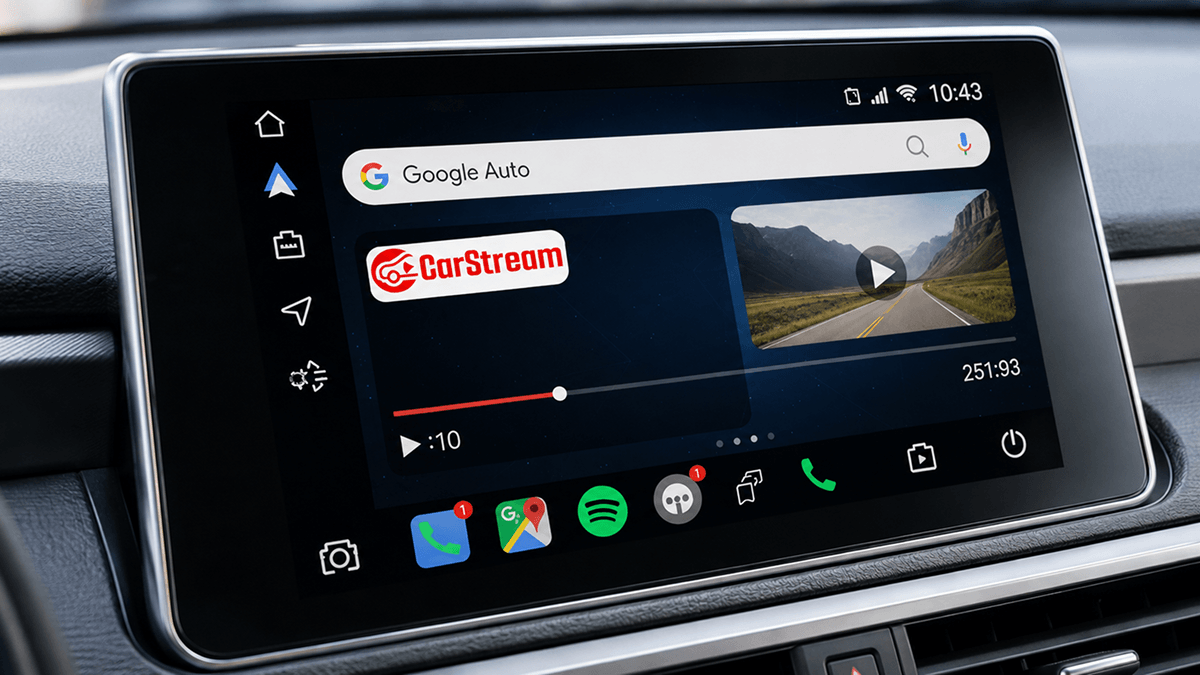
Carstream on Android 15: Does it work?

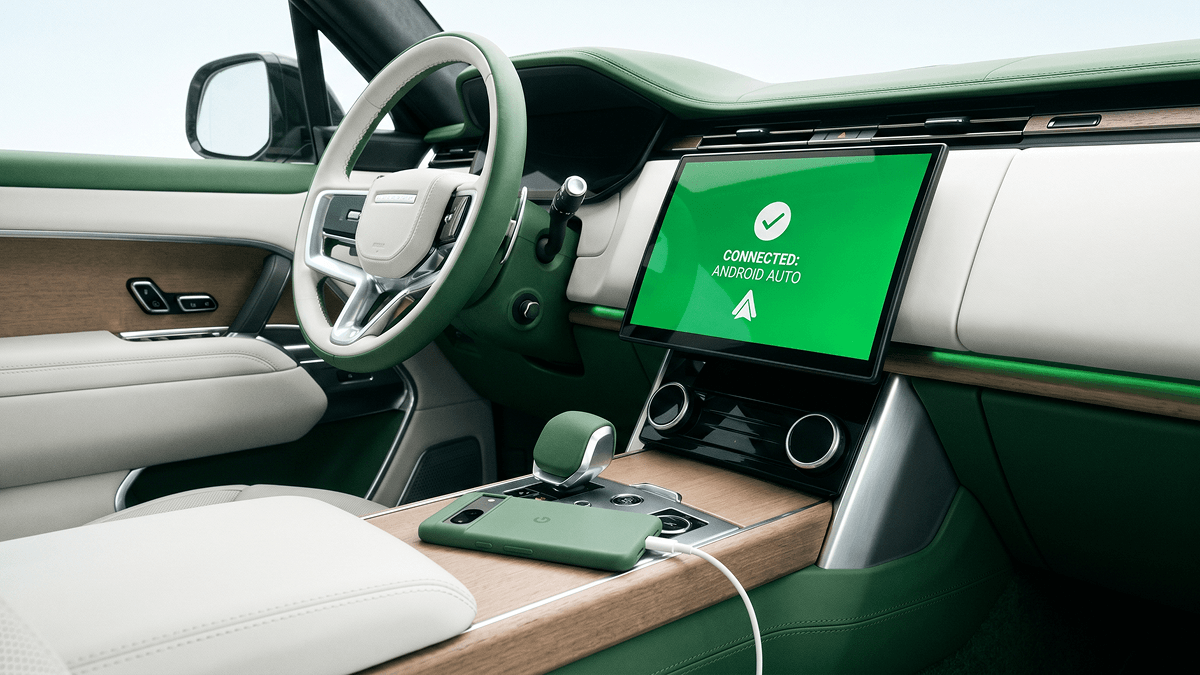
Yes - Carstream not supports Android 15. This page covers the confirmed APK version, known bugs, device-specific workarounds for Samsung and Xiaomi, and a complete setup guide to get YouTube working on Android Auto.
Quick Answer
Which Carstream APK version to use on Android 15
Any Carstream APK from v2.0.5 upward works on Android 15. The table below shows which versions are recommended and why.
Always download the latest APK from aastore.carstream.app to ensure you have the most up-to-date version.
Known Issues on Android 15
The following bugs have been reported on Android 15. Most affect specific device brands or require a one-time fix.
1. Carstream not appearing in Android Auto app list after install
On some Android 15 devices - particularly Xiaomi running MIUI 16 or HyperOS - Carstream installs successfully but does not appear in the Android Auto launcher. Android Auto Developer Mode is active, but the app is invisible in the list.
FIX: Disable MIUI Optimization in Developer Options on Xiaomi devices. On other devices, force-stop Android Auto, then reopen it. If it still does not appear, uninstall and reinstall Carstream v2.0.7.
2. Second permissions prompt on Samsung One UI 7 first launch
On Samsung devices running Android 15 with One UI 7, Carstream may show a second overlay permissions prompt after the initial install. If dismissed, Carstream opens but mirroring does not work.
FIX: When the second permissions screen appears, tap Allow. If you already dismissed it, go to Settings, Apps, Carstream, Permissions, and manually enable Display over other apps.
3. Wireless Android Auto drops connection during active mirroring session
A small number of Android 15 devices experience occasional wireless Android Auto disconnects while Carstream is actively mirroring content. The connection drops and requires manual reconnection from the head unit.
FIX: Update to Carstream v2.0.7, which includes a session keep-alive improvement. If drops persist, toggle Wireless Android Auto off and back on in your car's head unit settings. Using a USB connection eliminates this issue entirely.
4. Audio from mirrored apps cuts out briefly on Android Auto connect
When Carstream first connects to Android Auto on Android 15, some users report a 1-2 second audio cutout before playback stabilises. This only affects the first few seconds after a new Android Auto session starts.
FIX: This resolves itself within seconds of connecting. No action needed. If the cutout is longer than 5 seconds, clear Carstream app cache under Settings, Apps, Carstream, Storage.
5. Carstream crashes on launch after Android 15 system update
After a minor Android 15 system update on certain devices, Carstream may crash on launch until permissions are re-granted. This is caused by Android 15 resetting overlay permissions during OS updates.
FIX: Go to Settings, Apps, Carstream, and re-enable Display over other apps. If the crash continues, uninstall Carstream, download v2.0.7 from aastore.carstream.app, and reinstall.
Device-specific Workarounds on Android 15
Most Android 15 devices work with Carstream out of the box. The following workarounds apply to specific manufacturers where Android 15 customizations create extra setup steps.
Xiaomi - MIUI 16 / HyperOS
CarStream not appearing in Android Auto app list
MIUI Optimization on Xiaomi devices restricts how sideloaded apps register with Android Auto. CarStream installs correctly but does not show in the Android Auto launcher until this is disabled.
- Go to Settings, Additional Settings, Developer Options.
- Scroll down and disable MIUI Optimization.
- Restart your phone when prompted.
- Open Android Auto — CarStream should now appear in the app list.
Samsung - One UI 7 (Android 15)
Second overlay permissions prompt dismisses incorrectly
Samsung One UI 7 on Android 15 shows a Samsung-specific security overlay prompt in addition to Android's standard overlay permission. If the Samsung prompt is dismissed first, Carstream's overlay permission is blocked even though Android's permission shows as granted.
- Go to Settings, Apps, find Carstream
- Tap Permissions, then Special app access.
- Find Appear on top and ensure it is enabled for Carstream
- Also check Settings, Security, Install unknown apps and confirm Carstream's source app has permission
- Force-stop Carstream and relaunch it
OnePlus / OxygenOS 15
Carstream removed from Android Auto after battery optimization reset
OxygenOS 15's aggressive battery management can reset app permissions including the Android Auto Developer Mode whitelist during low battery events or overnight optimization cycles. Carstream disappears from Android Auto without warning.
- Go to Settings, Battery, Battery Optimization
- Find Carstream and set it to Don't optimize
- Do the same for the Android Auto app
- Re-enable Android Auto Developer Mode if it was reset (tap version number 10 times in Android Auto settings)
All devices - Android 15
Carstream not found after fresh install
On Android 15, a fresh Carstream install sometimes requires Android Auto to be restarted before the app registers in the launcher. This affects all device brands.
- Install Carstream APK from https://aastore.carstream.app/
- Go to Android Auto Settings and confirm Developer Mode is active
- Force-stop Android Auto: Settings, Apps, Android Auto, Force Stop
- Reopen Android Auto - Carstream will now appear in the launcher
How to Set Up Carstream on Android 15
Follow these steps for a clean Carstream install on Android 15. This guide applies to all devices - check the workarounds section above for any brand-specific extra steps.
-
1
Visit the Website and Activate the Plan
Open your mobile browser and go to https://aastore.carstream.app/ .
After scanning, tap the link that appears on your phone.
Follow the on-screen instructions to add or install AAStore on your Android device.
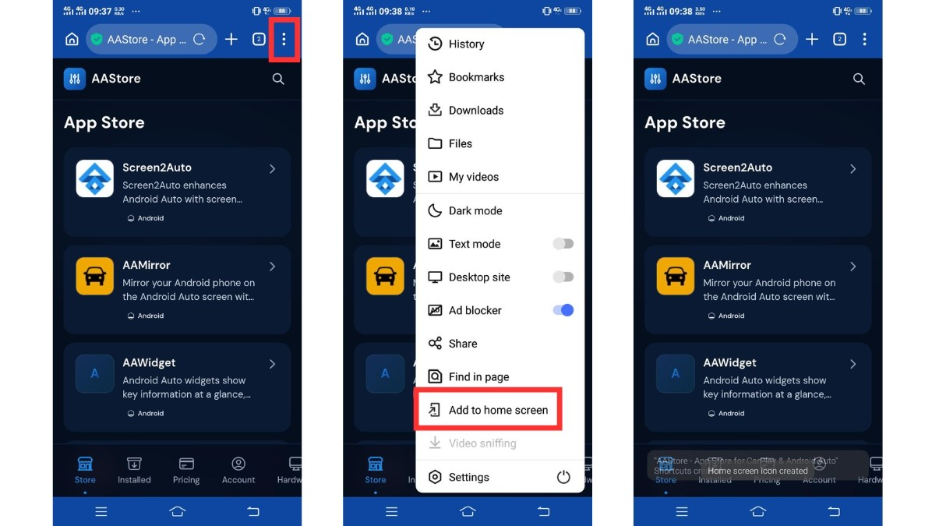
Choose the AAStore plan that matches how many apps you want to activate and complete the one-time purchase.
After, Go to the Account tab > Enter the email address you used during checkout and tap Verify.
After verification, your plan will activate, and your app slots will unlock.
-
2
Find CarStream
Use the search option on the website to find the CarStream APK file.
-
3
Download and Install the APK
Download the CarStream APK file to your Android phone.
Open the downloaded APK file and tap Install.
-
4
Connect Android Auto
Connect your phone to your car using USB or wireless Android Auto.
-
5
Open CarStream
On your car display, open Android Auto and select CarStream from the app list.
-
6
Open YouTube
Inside CarStream, visit youtube.com and start playback only while safely parked.
More Compatibility Guides
Full Android compatibility overview - all versions
SetupHow to set up Carstream on Android Auto from AAstore
Android 16CarStream on Android 16 - Use AAbrowser
Android 14CarStream on Android 14 - Use CarStream
Android 17CarStream on Android 17 - Use AAbrowser
Ready to Set Up Carstream on Android 15?
Download the latest Carstream APK - v2.0.7, fully tested on Android 15.
Download CarStream APK →On Android 16 or above? Download AAbrowser instead.
FAQs: Carstream on Android 15
Does Carstream work on Android 15?
Yes. Carstream fully supports Android 15. It is the most stable Android version for Carstream. Use v2.0.5 or higher - v2.0.7 is recommended. Download it from aastore.carstream.app.
What is the best Carstream APK version for Android 15?
Carstream v2.0.7 is the recommended version for Android 15. It is the latest release and includes stability improvements for wireless Android Auto. The minimum supported version for Android 15 is v2.0.5 - do not use v2.0.4 or below.
Does Carstream work with wireless Android Auto on Android 15?
Yes. Wireless Android Auto is fully supported on Android 15 with Carstream v2.0.5 and above. It works out of the box on most devices with no additional configuration. If you experience occasional drops, update to v2.0.7 or use a USB connection for stable sessions.
Does Carstream work on Xiaomi Android 15?
Yes, with one extra step. On Xiaomi devices running MIUI 16 or HyperOS with Android 15, go to Settings, Additional Settings, Developer Options and disable MIUI Optimization. Restart your phone and Carstream will appear in Android Auto. Without this step, Carstream installs but does not show in the launcher.