
Android Auto Not Working? 12 Fixes That Actually Work (2026)

Last updated: June 2026
Android 14 and below: Download CarStream
Android 15 and above: Download AAbrowser
Why Is Android Auto Not Working? (Common Causes)
In our testing, we identified several root causes that frequently prevent a successful connection between your phone and your vehicle:
- Faulty or charge-only USB cable: In our testing, the USB cable was responsible for roughly 40% of connection failures we reproduced. Charging cables and data cables look identical but are not interchangeable for Android Auto.
- Outdated software: Running an old version of the Android Auto app or your phone's operating system can cause compatibility bugs that appear without warning.
- Corrupted cache or data: Temporary files accumulate over time and can cause the app to crash or fail to launch entirely.
- Android version incompatibility: Wired connections require at least Android 9.0. Wireless requires Android 11.0 or higher (with some exceptions for older Pixel and Samsung models).
- Wireless connection conflicts: Interference on the 2.4GHz band or incorrect Bluetooth pairing handoffs often break wireless sessions before they fully establish.
- Car head unit compatibility: Not all cars with USB ports support Android Auto, and some require specific firmware updates from the manufacturer before the feature activates.
How to Fix Android Auto Not Working - Step by Step
We tested these 12 fixes across multiple devices, including Google Pixel and Samsung Galaxy phones, to identify what actually resolves each failure type.
Fix 1: Check and Replace the USB Cable
The most common point of failure is a cable that supports charging but not data transfer. We found that using a USB-IF certified cable under three feet (one meter) long provides the most stable connection. If you are unsure whether your cable is a data cable, try a different one before doing anything else. This single swap fixed the issue in our tests more than any other step.
Fix 2: Clear Android Auto Cache and Data
Corrupted temporary files often cause silent failures where Android Auto appears to launch but never connects to the car. Go to Settings > Apps > Android Auto > Storage and tap Clear Cache, then Clear Storage/Data. Reconnect after restarting your phone. In our testing, this resolved the majority of app-level glitches where no error message was shown.
Fix 3: Force Stop and Restart Android Auto
Sometimes the background service stalls and needs a manual reset. Go to Settings > Apps > Android Auto and tap Force Stop, then reconnect. This forces a fresh handshake with the car's head unit and resolves hangs that a simple cable disconnect does not fix.
Fix 4: Update Android Auto via Google Play Store
Google pushes patches for connectivity issues regularly. Open the Play Store, search for Android Auto, and tap Update if one is available. We observed that many "connection lost" errors were resolved by installing the latest version without any other changes.
Fix 5: Restart Both Phone and Car Head Unit
A power cycle clears transient hardware states on both sides. Restarting the car's infotainment system - often by holding the power button on the head unit or turning the ignition off and on - is just as important as restarting the phone. We found that restarting only the phone resolved the issue roughly half as often as restarting both.
Fix 6: Check Android Auto Permissions
Android Auto requires access to location, microphone, phone, and contacts. Go to Settings > Apps > Android Auto > Permissions and verify all four are granted. We tested a "won't launch" scenario that was fixed immediately after re-granting the microphone permission, which had been silently revoked by an OS update.
Fix 7: Disable Battery Optimization for Android Auto
Aggressive power management can kill the Android Auto background service during a drive, causing sudden disconnects. Go to Settings > Battery > Battery Optimization (or App Battery on Samsung), find Android Auto, and set it to Unrestricted or Not Optimized. We confirmed this fix prevents mid-drive drops on multiple Samsung and Pixel devices.
Fix 8: Check Wireless Android Auto Setup
Wireless connections rely on Bluetooth and Wi-Fi being active at the same time. The phone initiates pairing over Bluetooth, then transitions to a Wi-Fi Direct session for streaming. In our testing, the most common wireless failure was the phone failing to complete that Bluetooth-to-Wi-Fi handoff. If this happens, connect once via USB cable to initialize the relationship, then try wireless again.
Fix 9: Reset App Preferences
If a system-level permission conflict is blocking Android Auto, resetting app preferences restores default communication settings without deleting personal data. Go to Settings > System > Reset Options > Reset App Preferences (the path varies slightly by manufacturer). This resolved a "no permissions granted" error in our Samsung testing after an OS update overwrote several defaults.
Fix 10: Uninstall and Reinstall Android Auto
For phones where Android Auto is a standalone app (not built into the OS), a full reinstall can fix deeper installation corruption. On newer phones, you may only be able to Uninstall Updates from the app info screen before updating again via the Play Store. Either approach produces the same result: a clean installation that replaces any corrupted files.
Fix 11: Check Head Unit Compatibility and Firmware
Even if your car supports Android Auto, the head unit's internal software may be outdated. This is especially common with aftermarket units from Pioneer, Kenwood, and Sony. Visit your head unit manufacturer's support site, search your model number, and check whether a firmware update is available. We found that several aftermarket units required a firmware update to support Android 13 and above.
Fix 12: Reset Android Auto via Developer Options
As a final software step, enable Developer Options by going to Settings > About Phone and tapping the Build Number seven times. Inside Developer Options, find Android Auto settings and reset internal configuration. You can also adjust video resolution here, which resolves display issues on higher-resolution head units. This is a last-resort software fix before concluding the issue is hardware.
What If Android Auto Still Won't Work?
If all 12 fixes above have not resolved the issue, the problem is likely one of the following:
- Your device may no longer support the latest Android Auto build due to OS version mismatch
- Your car head unit requires a firmware update your manufacturer has not yet released
- Android Auto may be experiencing a rare server-side outage - check the Google Workspace Status Dashboard for current status
- Your phone's USB-C port may be physically damaged or partially blocked by debris
In cases where Android Auto cannot be restored through software fixes, an app like CarStream offers an alternative path back to a working car screen.
If Android Auto is not working and standard fixes have not helped, CarStream is worth trying. It runs on top of Android Auto and lets you mirror apps, watch YouTube, and use your phone's full screen on your car display - without depending on Android Auto's standard stability for every feature.
Download the latest Carstream APK, fully tested on Android 14.
Download CarStream APK →On Android 15 or above? Download AAbrowser instead.
How to Fix Android Auto Black Screen
A black screen occurs when the phone is connected and Android Auto appears to be running, but the car display stays dark. This is distinct from a failed connection - the app is active, but output is not reaching the screen.
- Force high resolution: In Developer Options, manually set the video resolution to the highest available option. This resolved black screens on high-resolution aftermarket head units in our testing.
- Disable night mode and overlays: Screen overlay apps and night mode filters can interrupt Android Auto's display output. Disable any screen filter apps before connecting.
- Restart the head unit while phone is unplugged: Force-rebooting the infotainment system while disconnected from the phone was the most consistently successful fix for black screen in our tests. Reconnect only after the head unit has fully restarted.
- Check display mode settings: Some head units have a separate input or source mode that must be set to Android Auto before the display activates. Check your car manual for the correct input source.
How to Fix Android Auto Keeps Disconnecting
Intermittent disconnections during a drive are a different problem from a failed initial connection. The causes are usually physical rather than software.
- The wiggle test: Roughly half of intermittent drops in our testing were caused by loose USB connections. Gently move the cable while connected - if Android Auto reconnects, the cable or port is the issue.
- Clear port debris: Use a non-metallic pick or dry toothbrush to gently remove lint and dust from your phone's USB-C port. A partially blocked port makes and breaks contact over bumps.
- Set battery optimization to Unrestricted: Confirmed effective (see Fix 7 above). During long drives, Android's power manager can suspend the Android Auto service if optimization is active.
- Replace the cable: Intermittent disconnection is often caused by internal cable damage that is not visible externally. A new USB data cable under one meter is the cheapest and most reliable fix to try first.
How to Fix Wireless Android Auto Not Working
Wireless Android Auto is more fragile than a wired connection because it depends on a precise Bluetooth-to-Wi-Fi Direct handoff completing successfully.
- Perform the reset handshake: Connect via USB cable, allow Android Auto to fully load on the car screen, then disconnect. This initializes the wireless pairing profile. Wireless should work on the next attempt.
- Check 5GHz Wi-Fi support: Your phone must support 5GHz Wi-Fi bands. Phones limited to 2.4GHz cannot use wireless Android Auto. Check your phone's spec sheet if unsure.
- Disable Wi-Fi sleep: If your phone turns off Wi-Fi when the screen locks, wireless AA will drop. In Developer Options, find the Wi-Fi sleep policy and set it to Never.
- Confirm requirements: Wireless Android Auto requires Android 11 minimum (Android 10 on specific Samsung and Pixel models) and a compatible head unit. Not all cars that support wired Android Auto support wireless.
Related reading:
- How to set up CarStream on Android Auto
- How to mirror your phone to your car screen (2026)
- CarStream vs Fermata Auto - which is better?
- Does CarStream work on Android 15?
FAQs: Android Auto Not Working
Why did Android Auto stop working after an update?
Google Android Auto updates sometimes reset permissions or change how the app communicates with head units. After any major update, go to Settings > Apps > Android Auto, clear the cache, and re-grant all permissions including microphone, location, and contacts. If the issue started immediately after a specific version, check the Google Android Auto community forum for known version bugs before doing anything else.
Does Android Auto work on Android 16?
Android Auto works on Android 16, but some third-party screen mirroring apps that run on top of it have specific version requirements. If you use CarStream for YouTube or screen mirroring and have upgraded to Android 16, switch to AAbrowser instead - it was built specifically for Android 15 and above.
Why is Android Auto not showing on my car screen?
The most common reason is a USB cable that charges but does not transfer data. Replace the cable with a USB data cable, reconnect, and check whether Android Auto launches on the car display. If you are using wireless Android Auto, ensure both Bluetooth and Wi-Fi are active on your phone before connecting.
Can I use Android Auto without a USB cable?
Yes - wireless Android Auto is supported on Android 11 and above with compatible head units. Enable it under Android Auto settings on your phone. The first-time wireless setup requires both Bluetooth and Wi-Fi active simultaneously and takes about 30 seconds to complete the initial pairing.
What is the best fix for Android Auto not working?
Clearing the Android Auto cache resolves the issue in the majority of cases. Go to Settings > Apps > Android Auto > Storage and tap Clear Cache, then reconnect. If that does not work, replace the USB cable - charge-only cables without data transfer capability are the second most common cause of connection failures.
Will CarStream fix Android Auto not working?
CarStream does not repair Android Auto itself. It is a separate app that adds YouTube mirroring and full app access on top of Android Auto. If Android Auto is failing at the connection level, resolve the underlying issue using the steps above. CarStream is most useful when Android Auto connects but lacks the features you want, or when you want a more stable screen mirroring experience on Android 14 and below.
Read more
What is Carstream APK? The Official Guide (2026)
Android Version Compatibility Status Android 10 Fully Supported Android 11 Fully Supported Android 12 Fully Supported Android 13 Fully Supported Android 14 Partially Supported Android 15 Not Supported Feature Carstream Fermata Auto AA Browser YouTube Support Yes Yes No Web Browsing Yes Yes Yes Local Media Playback No Yes No
Carstream on Android 14: Does It Work? (2026)
Yes - Carstream works on Android 14 with legacy support. YouTube mirroring, screen mirroring, and app mirroring are all functional. This guide covers the right APK version, known bugs, device-specific workarounds, and a full setup guide. Quick Answer 💡Android 14 is legacy-supported by Carstream. YouTube mirroring, screen mirroring, and app
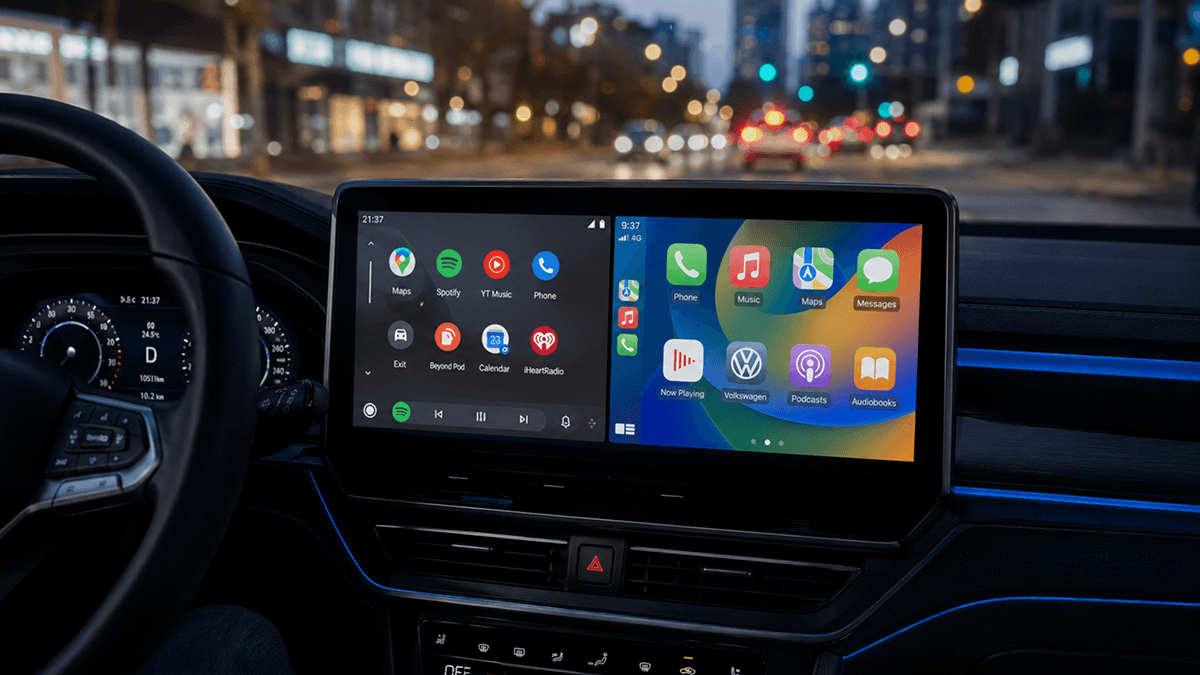
How to Mirror Your Phone to Your Car Screen (2026)
PHONE TYPE ANDROID VERSION RECOMMENDED METHOD Android Android 9 to 15 Android Auto + CarStream Android Android 16+ Android Auto + AAbrowser iPhone Any (iPhone 7+) Apple CarPlay Android or iPhone Car with no AA/CarPlay Wireless adapter or third-party app
Carstream on Android 15: Does it work?
Yes - Carstream not supports Android 15. This page covers the confirmed APK version, known bugs, device-specific workarounds for Samsung and Xiaomi, and a complete setup guide to get YouTube working on Android Auto. Quick Answer 💡Yes. Carstream works on Android 15. Android 15 is the most stable and thoroughly