
Download and Install CarStream APK (2026 Guide)
Always install the latest version of CarStream for the best Android Auto compatibility and performance.
Android Version Compatibility
| Android Version | CarStream Support | Notes |
|---|---|---|
| Android 16+ | Not Supported | OS-level permission restrictions block sideloaded apps. Use AAbrowser instead. |
| Android 15 | Not Supported | OS-level permission restrictions block sideloaded apps. Use AAbrowser instead. |
| Android 10 to 14 | Supported | Fully stable. |
| Android 9 | Supported | Recommended minimum for Android Auto. |
Android 15/16 users: Android 15 and Android 16 introduced stricter OS-level controls over sideloaded applications, specifically tightening background overlay permissions and accessibility service access. No version of CarStream, can bypass these restrictions. AAbrowser is the recommended replacement for Android 16 devices.
If you want more details about CarStream Android Compatibility check: Which app works on your Android version? (2026)
How to Install CarStream APK - Step by Step Guide
AAStore is a dedicated Android Auto app store created for apps that are not usually available through the Google Play Store. It allows Android users to browse, download, and install supported Android Auto apps on their phone.
Step 1: Scan the AAStore QR Code
- Use your Android phone camera or QR scanner to scan the AAStore QR code.
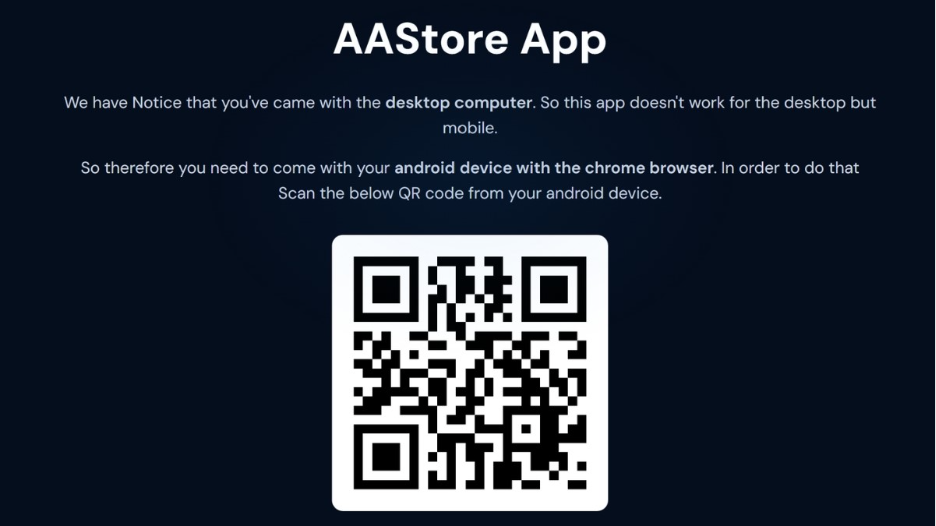
- After scanning, tap the link that appears on your phone.
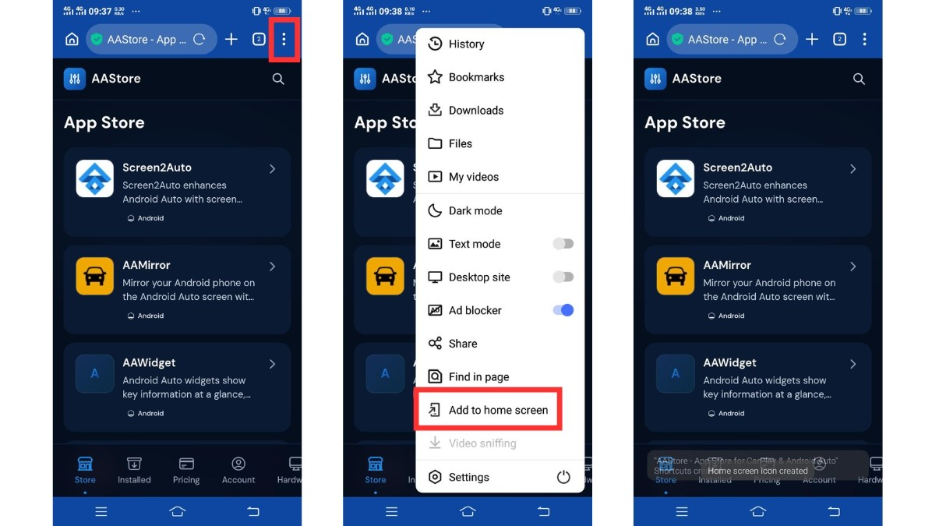
Step 2: Add AAStore to Your Android Phone
- The AAStore app store page will open on your phone.
- Follow the on-screen instructions to add or install AAStore on your Android device.
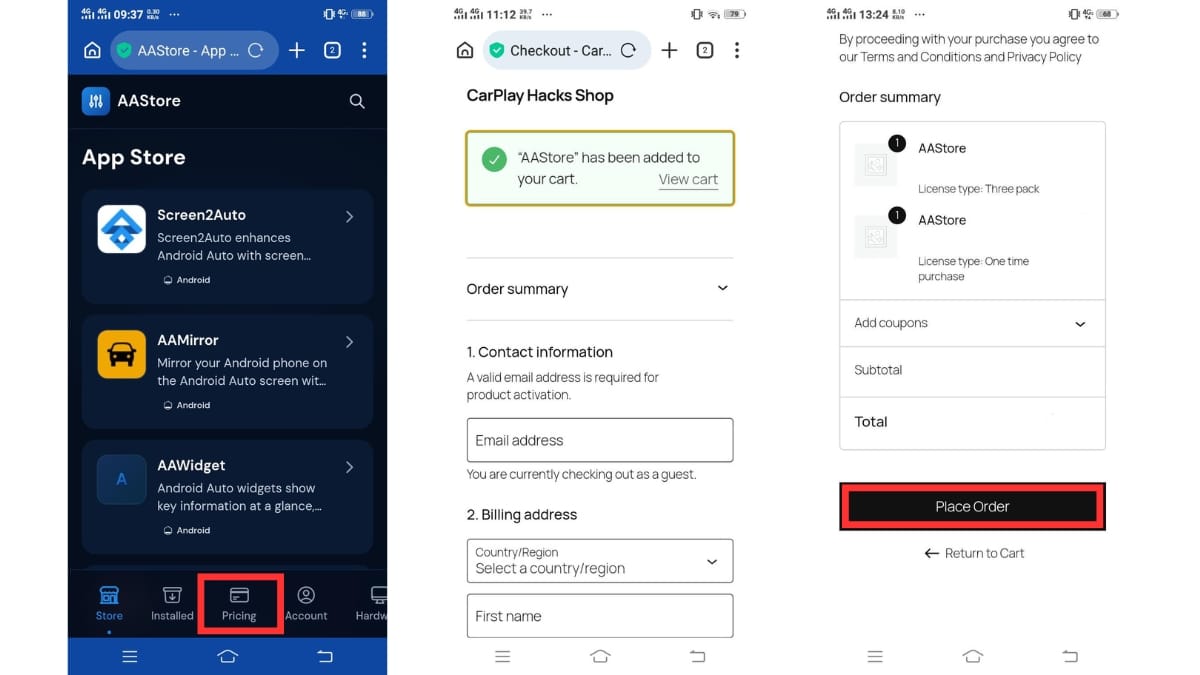
Step 3: Complete Checkout
- Choose the AAStore plan that matches how many apps you want to activate.
- Complete the one-time purchase.
- You will receive a confirmation email after checkout.
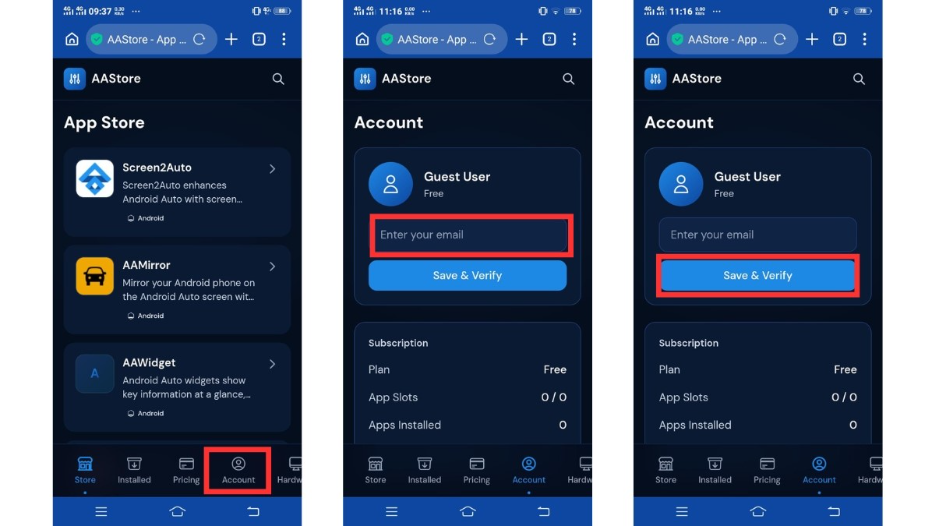
Step 4: Register and Activate Your Account
- Open AAStore on your phone.
- Go to the Account tab.
- Enter the email address you used during checkout.
- Tap Verify.
- After verification, your plan will activate, and your app slots will unlock.
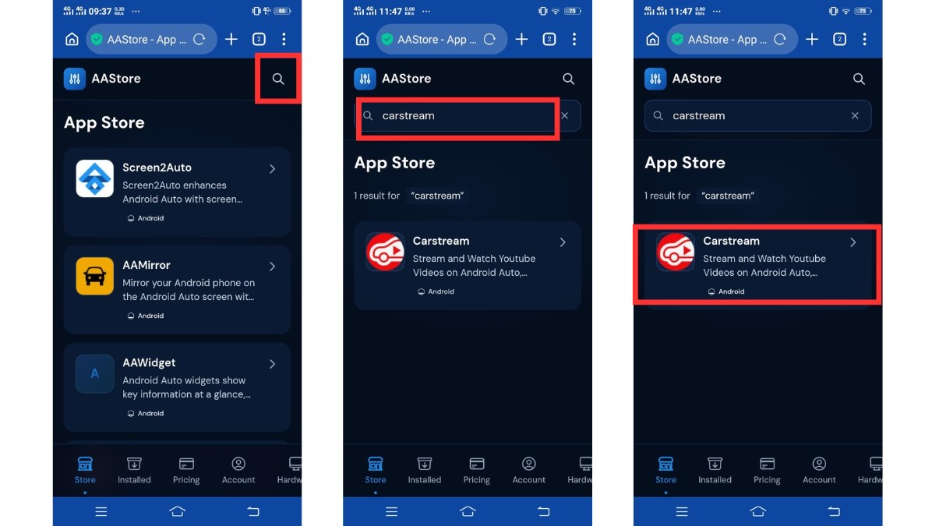
Step 5: Find CarStream
- Inside AAStore, browse the app catalog or use the search option.
- Find CarStream and open the CarStream app page.
Step 6: Download CarStream APK
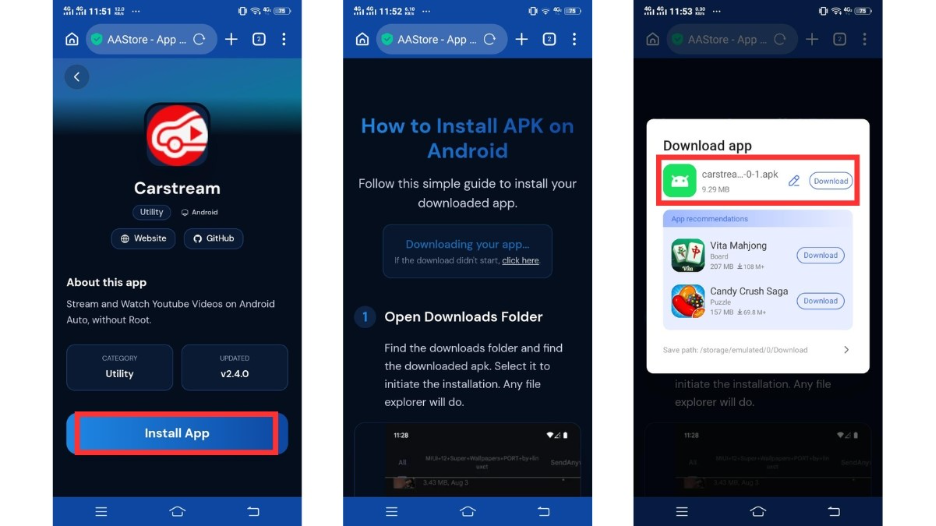
- Tap the Download or Install button on the CarStream page.
- Wait while AAStore downloads the CarStream APK file to your Android phone.
Step 7: Install CarStream APK
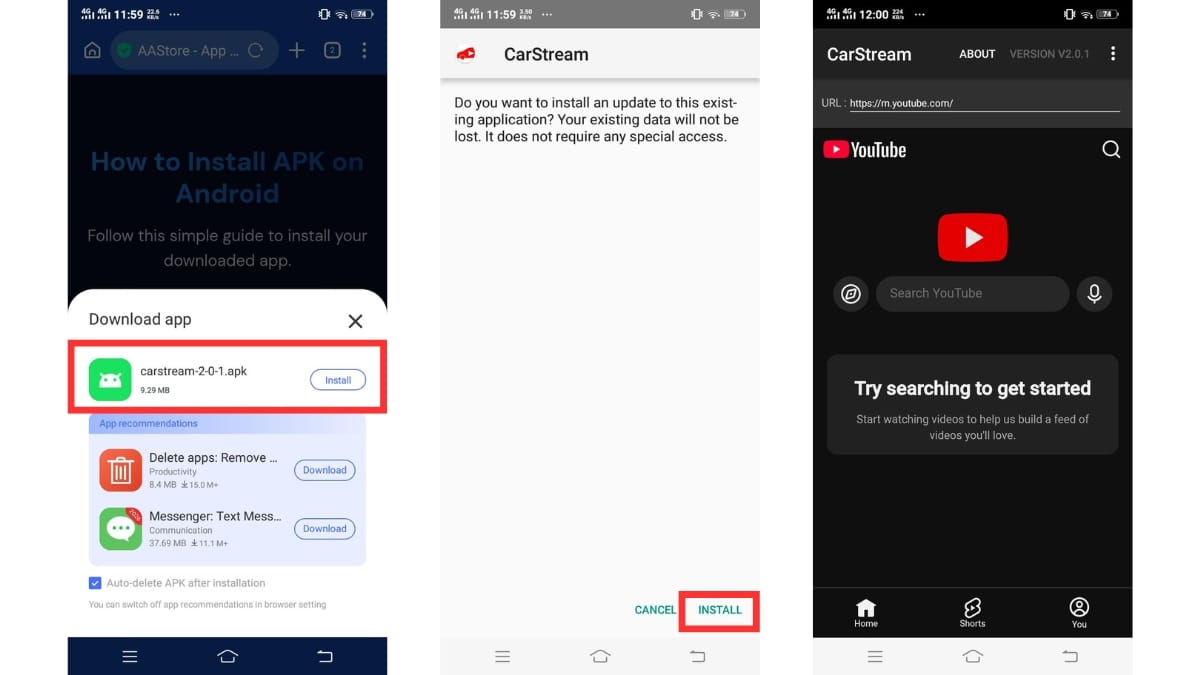
- When the Android installer opens, tap Install.
- Wait for the installation to be completed.
- After installation, tap Done or Open.
Step 8: Enable Developer Mode in Android Auto
This step is required for CarStream to appear on your car display. Without it, the app will install correctly but will not show up in the Android Auto launcher.
- Open the Android Auto app on your phone.
- Tap the three-dot menu in the top right corner and go to Settings.
- Scroll down and tap "About Android Auto".
- Tap "About Android Auto" 10 times in quick succession until a message says "You are now a developer".
- Go back to the main Android Auto Settings screen.
- Scroll to the bottom and tap "Developer settings".
- Check the "Unknown sources" box.
- Set "Application mode" to Developer.
Step 9: Connect Your Phone to Android Auto
- Connect your Android phone to your car using USB or wireless Android Auto.
- Open Android Auto on your car display.
- Check the app launcher for CarStream.
Step 10: Use CarStream Safely
- Only use CarStream when your vehicle is safely parked.
- Do not watch videos, browse distracting content, or use screen-heavy apps while driving. The car is not a cinema, despite humanity's best efforts to make every rectangle into one.
AAStore is especially useful for users who want to install apps like CarStream without manually searching for APK files across different websites.
Disclaimer: AAStore, CarStream and related Android Auto apps may not be officially supported by Google or any car manufacturer. Compatibility and app behavior may vary depending on Android version, phone model, Android Auto version, vehicle system, region and future software updates.
Version History
- Latest tested version.
- Fails on Android 16 due to background overlay and accessibility restrictions.
- General maintenance release.
- Fails on Android 16 due to background overlay and accessibility restrictions.
- General maintenance release.
- Continued support for Android 14 and below.
- Major release.
- Added rooted-phone unlock for cases where Google blocks third-party Android Auto apps.
Troubleshooting CarStream
1. "CarStream is not compatible with your device" on Android 16
- This is an OS-level permission block introduced in Android 16 - it cannot be fixed by changing settings.
- Android 16 prevents sideloaded apps from registering with the Android Auto framework entirely.
- The only solution is to switch to a compatible app. AAbrowser is the recommended replacement for Android 16 devices.
2. "App not found" in Android Auto after installation on Android 16
- On Android 16, the system prevents sideloaded apps from appearing in the car's app launcher.
- Re-enabling Developer Mode or reinstalling CarStream will not resolve this - it is a framework restriction.
- Switch to AAbrowser for Android 16 compatibility.
3. "Overlay permission denied" on launch
- On Android 16: this is a permanent API restriction. Even if you manually grant overlay permission, the system blocks CarStream from using it. Switch to AAbrowser.
- On Android 14 and below: go to Settings, then Apps, then CarStream, then Display over other apps, and toggle it on.
- After granting the permission, restart CarStream from the Android Auto launcher.
4. CarStream crashes immediately on connecting to Android Auto on Android 16
- Android 16 changes to the Android Auto API break CarStream's session initialization before it can render any content.
- This is not fixable with a settings change or reinstall on Android 16.
- Use AAbrowser as the replacement on Android 16 devices.
5. CarStream missing from car display on Android 14 and below
- Open the Android Auto app on your phone.
- Go to Settings, scroll down, and tap "About Android Auto" 10 times to enable Developer Mode.
- Go back to Settings and scroll to "Developer settings" at the bottom.
- Check the "Unknown sources" box and set Application Mode to Developer.
- Disconnect and reconnect your phone to Android Auto - CarStream should now appear in the launcher.
6. CarStream APK won't install - "Install blocked" error
- Android blocks APK installs from unknown sources by default.
- Go to Settings, then Apps, then Special App Access, then Install unknown apps.
- Find AAStore and toggle "Allow from this source" to on.
- Return to AAStore and try the install again.
7. CarStream crashes or freezes on Android Auto (Android 14 and below)
- Check that you are running the latest version of CarStream (v2.0.7) from AAStore.
- Clear CarStream's app cache: Settings, then Apps, then CarStream, then Storage, then Clear Cache.
- Check that Android Auto is updated to the latest version via the Google Play Store.
- If crashing continues, uninstall and reinstall CarStream through AAStore.
8. Audio or video playback drops during use
- If audio doesn't continue playing in the background, check which version of CarStream you are running.
- Background playback and audio focus issues were fixed in v1.8.3 - update to at least this version via AAStore.
- If you are already on v2.0.7 and still experiencing drops, clear the CarStream app cache and restart Android Auto.
9. CarStream not working on a rooted phone
- If Google is blocking CarStream on your rooted device, open the CarStream app on your phone.
- Look for the "Unlock [Root]" option within the app settings.
- Tap it and grant Superuser access when prompted.
- This feature was introduced in v2.0.0 specifically to address root-related blocks.
10. AAStore account not activating after purchase
- Check your email inbox and spam folder for the confirmation email from AAStore.
- In AAStore, go to the Account tab and re-enter the email address used at checkout.
- Tap Verify and wait up to 60 seconds for activation to complete.
- If the account still does not activate, contact AAStore support via the email in your confirmation receipt.
Related Guides
- Android Auto Not Working - How to Fix It
- CarStream Common Issues and Fixes
- Watch YouTube on Android Auto with Android 17
Frequently Asked Questions
Common questions about download and install CarStream APK
Do I need root access for AAStore?
No. AAStore is designed to work without rooting your Android phone.
Does AAStore work with wireless Android Auto?
Yes. AAStore works with cars and aftermarket head units that support wireless Android Auto.
Does AAStore also work with USB Android Auto?
Yes. AAStore also works with USB Android Auto connections.
Is AAStore a subscription?
No. Apps are activated with a one-time purchase. Future updates are included with lifetime access.
Why do I need to allow APK installation?
AAStore installs APK files directly on your Android phone. Android may ask you to allow installation from the source before the APK can be installed.
Can I use CarStream on Android 16?
No. Android 16 introduced OS-level restrictions that block sideloaded apps from working with Android Auto. No version of CarStream can bypass these restrictions. AAbrowser is the recommended solution for Android 16 users.
Does CarStream work on iPhone or iOS?
No. CarStream is an Android-only app and works exclusively with Android Auto. It is not compatible with iPhone or Apple CarPlay.
Where can I download the CarStream APK?
CarStream APK is available exclusively through AAStore. Do not download from third-party APK sites - those builds are not verified and may be outdated or modified.
Do I need to enable Developer Mode to use CarStream?
Yes. Developer Mode need to be enabled in the Android Auto app for CarStream to appear on your car display. Open Android Auto, tap "About Android Auto" 10 times, then enable Unknown sources and set Application Mode to Developer in the Developer settings menu.