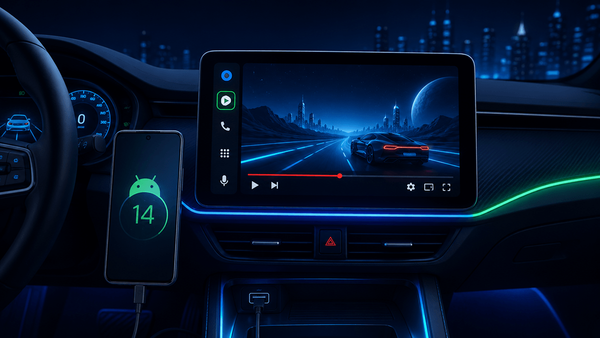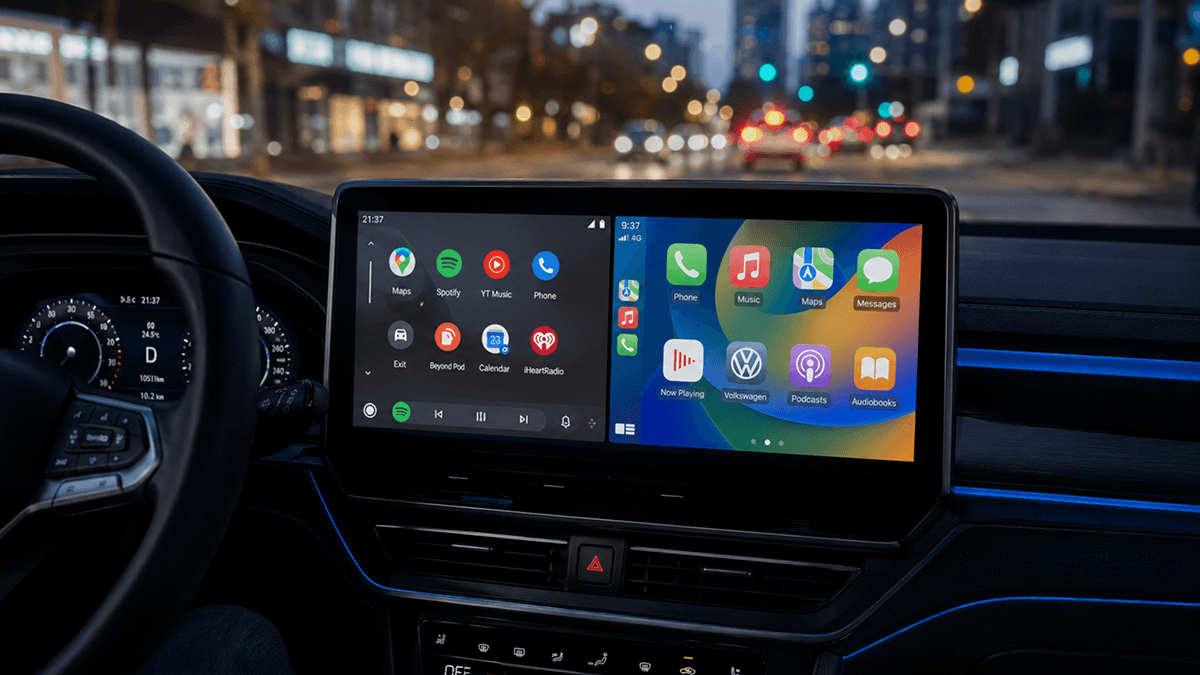
How to Install Fermata Auto on Android Auto?

Share
install-fermata-auto-on-android-auto

Last updated: August 2026.

💡
Fermata Auto is a third-party Android Auto media app that can play local media and provide additional playback features beyond standard Android Auto apps.

For Android 14, Fermata Auto may still work with the right setup. For Android 15, Android 16, or newer, compatibility can be more difficult, so AABrowser may be a better option if Fermata Auto does not appear in Android Auto.

Fermata Auto is a free, open-source media player designed to work with Android devices and Android Auto. It supports local audio and video files, playlists, IPTV, browser-based media, and other playback features. The official Fermata project lists Android Auto support among its core features.

Installing Fermata Auto on Android Auto is different from installing a regular Android app because Android Auto restricts which applications can appear on a vehicle's display. Compatibility can also vary depending on your Android version, Android Auto version, phone manufacturer, and installation method.

This guide explains how to install and use Fermata Auto, including important information for Fermata Auto Android 14, Fermata Auto Android 15, and Fermata Auto Android 16.

What Is Fermata Auto?

Fermata Auto is part of the Fermata Media Player project. It is an open-source multimedia application with support for Android Auto and Android TV. Its features include media playback, playlists, subtitles, multiple playback engines, and folder-based media organization.

Depending on the version and configuration, users searching for fermata android auto may encounter several related components or functions, such as Fermata Auto, Fermata Media Service, and Fermata Mirror.

Because Fermata Auto is not installed through Android Auto in the same manner as mainstream Play Store apps, getting it to appear on the vehicle display can require additional configuration.

Requirements Before Installing Fermata Auto

Before beginning, prepare the following:

  • An Android smartphone compatible with Android Auto
  • Android Auto configured on your phone and vehicle
  • A USB cable or wireless Android Auto connection
  • The Fermata Auto installation package from a trusted source
  • Permission to install apps from the required source, if sideloading is used
  • Android Auto developer settings when required by your installation method

Whenever possible, obtain Fermata releases from the developer's official GitHub repository rather than random APK websites. The official project is maintained by Andrey Pavlenko and publishes its releases publicly.

Avoid modified or repackaged Fermata Auto APK files from unknown websites. Sideloaded APK files can contain unwanted or malicious modifications.

For more information about Fermata Auto, visit the official page – Fermata Auto

How to Install Fermata Auto on Android Auto

There is no single installation method that works on every Android and Android Auto combination. The following procedure covers the basic process.

Step 1: Configure Android Auto First

Before installing Fermata Auto, make sure normal Android Auto works correctly.

Connect your phone to your vehicle through USB or wireless Android Auto and verify that standard applications such as Maps or your normal media player appear.

If Android Auto itself is not working, resolve that issue before troubleshooting Fermata Auto.

Step 2: Download Fermata Auto

Visit the AAStore and download the Fermata Auto APK.

When downloading a Fermata Auto Android 16 APK or a build for another Android version, check that the package comes from the original developer or another source you trust.

Do not assume that an APK labeled specifically for Android 16 is automatically compatible with your Android Auto configuration. Android Auto compatibility involves more than the phone's operating-system version.

Step 3: Allow the APK Installation

When installing an APK manually, Android may display an Install unknown apps prompt.

Grant installation permission only to the application you are intentionally using to open the APK, such as your browser or file manager.

Install Fermata and then disable that permission again if you do not regularly sideload applications.

The exact menu names can vary between Samsung, Pixel, Xiaomi, OnePlus, and other Android devices.

Step 4: Enable Android Auto Developer Mode if Required

Some Fermata Auto installation methods require Android Auto's developer options.

The exact interface can change between Android Auto releases, but the general process is:

  1. Open Android Auto settings on your phone.
  2. Locate the Android Auto version information.
  3. Tap the version entry repeatedly until developer mode is enabled.
  4. Open the developer settings menu.
  5. Check for options related to unknown sources if your installation method requires them.

Developer-mode options can change or disappear with Android Auto updates, so the settings available on your device may not exactly match older tutorials.

Step 5: Connect Your Phone to Android Auto

After Fermata has been installed:

  1. Disconnect your phone from the car.
  2. Restart Android Auto or restart the phone if necessary.
  3. Reconnect through USB or wireless Android Auto.
  4. Open the Android Auto app launcher.
  5. Look for Fermata Auto or the appropriate Fermata component.

If Fermata Auto appears, open it while the vehicle is stationary and complete any requested storage or media permissions.

Alternatives to Fermata Auto APK

If you are having issues with Fermata Auto, consider the below-stated third-party APKs.

Disclaimer: As we have already discussed these third-party apps, here we are not discussing them in detail.

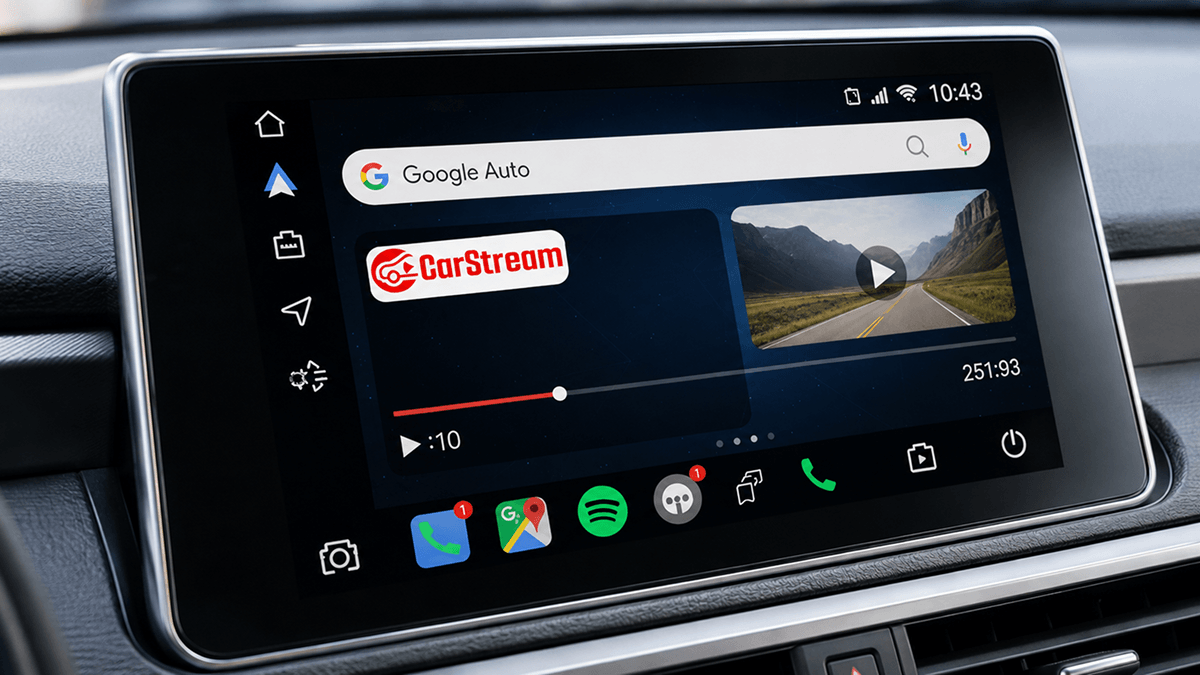
CarStream APK

  • CarStream is recommended as the recently developed best 3rd party YouTube-watching Android Auto app

Screen2Auto APK

  • Recommended as the recently developed another best mirroring and streaming third-party Android Auto apk

  • Detailed information such as step guides, requirements, and FAQs are available here

Fermata Auto Android 14

Fermata Auto Android 14 can be more complicated than earlier Android releases because changes to Android and Android Auto affected third-party app visibility and screen-mirroring methods.

The Fermata project's own community has an Android 14+ discussion containing multiple user-developed approaches. This is important because these methods are workarounds rather than one universally supported installation procedure.

If Fermata Auto does not appear on Android 14:

  • Verify that Fermata is installed correctly.
  • Recheck Android Auto developer settings.
  • Restart the phone and vehicle infotainment connection.
  • Review the current Fermata GitHub discussions for your phone and Android Auto version.
  • Do not rely on an old tutorial without checking whether it still applies.

Android Auto updates can break methods that previously worked.

Fermata Auto Android 15

Fermata Auto Android 15 has generated compatibility reports from users of the official project.

For example, users have reported cases where Fermata Auto did not appear in Android Auto after upgrading to Android 15, particularly with certain non-root installation configurations.

There are also community discussions specifically addressing Android 15 compatibility and installation approaches.

Therefore, if you are using Android 15, do not assume that an installation procedure written for Android 12, Android 13, or Android 14 will work unchanged.

If Fermata Auto is missing:

  • Update Fermata to the appropriate current build.
  • Verify Android Auto permissions.
  • Check whether the application appears in Android Auto's launcher customization settings.
  • Restart Android Auto after installation.
  • Review the project's current Android 15 issues and discussions.

Fermata Auto Android 16

Fermata Auto Android 16 compatibility is especially dependent on the specific Android Auto build and installation configuration.

As of 2026, users continue to report both successful and unsuccessful Android 16 configurations in the Fermata project's issue tracker. One Android 16 issue reports Fermata failing to launch correctly, while another report describes Fermata being used on an Android 16 device but loading intermittently.

This means there is no basis for claiming that every Fermata Auto Android 16 APK will work automatically on every Android 16 phone.

If you have Android 16:

  1. Use an official Fermata release.
  2. Make sure Android Auto itself is functioning normally.
  3. Install Fermata using a method known to work with your Android Auto build.
  4. Check Android Auto's launcher after reconnecting.
  5. Consult recent GitHub issues if the app is missing or fails to start.

Be cautious with websites advertising a special or modified fermata auto android 16 apk as a guaranteed fix. The developer's repository should be your primary reference point.

Recommendation for Android 15 and Android 16 Users

If your phone runs Android 15 or a newer version such as Android 16, we recommend considering the AABrowser solution instead of spending too much time troubleshooting older Fermata Auto installation methods.

Newer Android releases and recent Android Auto updates have made some traditional third-party app installation methods less reliable. The Fermata project's own issue tracker includes reports from Android 15 users where Fermata Auto does not appear correctly in Android Auto.

AABrowser is a newer Android Auto-oriented solution that has been discussed in the Fermata Auto community as an easier option for accessing browser-based content, including YouTube, on newer Android versions.

Our Recommendation

  • Android 14: Try Fermata Auto first, as several installation approaches are still available.
  • Android 15: If Fermata Auto does not appear or stops working, consider switching to the AABrowser solution.
  • Android 16 or above: We recommend starting with AABrowser, particularly if your main goal is browser or YouTube access through Android Auto.

AABrowser and Fermata Auto are different applications, so AABrowser is not a direct replacement for every Fermata feature. Fermata remains more appropriate when you specifically need its local media, IPTV, playlist, or other media-player functionality. AABrowser may be the simpler alternative when the primary requirement is browser-based content on Android Auto.

As with any video or browser functionality on a vehicle display, use these features only while the vehicle is safely parked.

Alternative Hardware Solutions

The exact use of these third-party apps like Fermata Auto is to watch YouTube and stream Netflix on Android Auto. As they are the cheapest solutions, sometimes we have observed that users are struggling with them. Therefore, here are some accurate and somewhat expensive hardware solutions if those apps are not your thing!

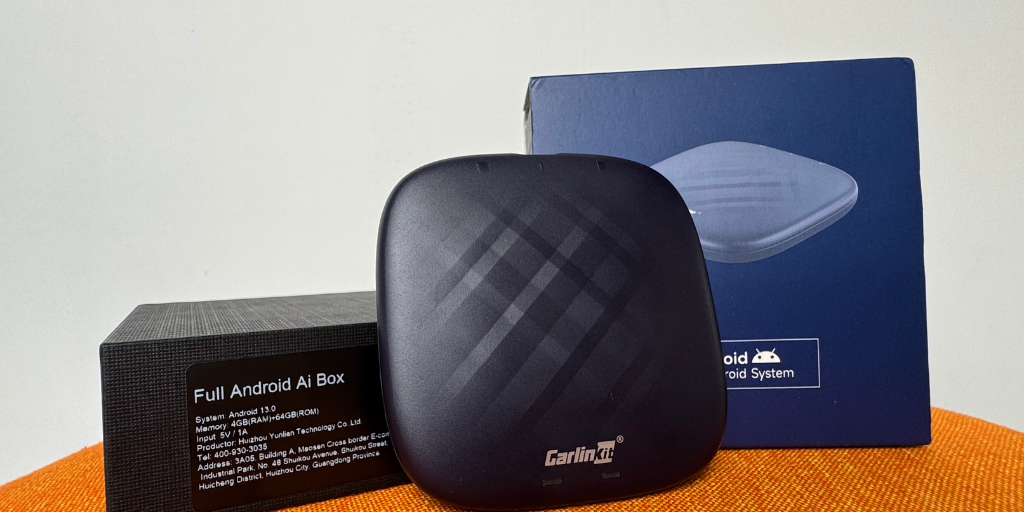
Carlinkit AI Box

Turn your car screen into a smart Android system in seconds with the CarlinKit Smart Box CPC200-Tbox Plus. It upgrades your factory wired CarPlay or Android Auto into a full Android experience. You can use apps, watch videos (YouTube, Netflix), play games, and still keep wireless CarPlay and Android Auto. Simple plug and play.

Buy Now

Installing Fermata Auto on Android Auto is relatively straightforward at the APK level, but getting the application recognized by Android Auto can be the difficult part.

For Fermata Auto Android 14, Fermata Auto Android 15, and Fermata Auto Android 16, compatibility varies because Android and Android Auto continue to change their security and application-integration behavior. Current reports from the Fermata project's GitHub pages confirm that some newer-version configurations work while others experience missing apps, launch failures, or inconsistent behavior.

Use the official project whenever possible, avoid questionable Fermata Auto APK downloads, and check current compatibility reports before applying older installation tutorials.

Most importantly, use Fermata's video or mirroring functions only while parked. Android Auto is designed primarily to minimize driver distraction, and safety should take priority over multimedia functionality.

Frequently Asked Questions

Common questions about Fermata Auto

Does Fermata Auto work with Android Auto?

Yes. Android Auto support is explicitly listed by the official Fermata project. Compatibility with a particular phone and Android Auto version can still vary.

Does Fermata Auto work on Android 14?

It can, although Android 14 introduced compatibility challenges for certain installation and mirroring methods. The project's community maintains Android 14+ discussions covering various configurations.

Does Fermata Auto work on Android 15?

Some configurations work, while other users have reported Fermata not appearing after moving to Android 15. Check the current project issues for your specific setup.

Does Fermata Auto work on Android 16?

Android 16 installations have been reported, but compatibility is not universal. The official project's issue tracker includes Android 16 reports involving both failures and inconsistent behavior.

Where should I download Fermata Auto?

The safest starting point is the official Fermata GitHub repository and its Releases section.

Why can't I see Fermata Auto in Android Auto?

Common causes include Android Auto restrictions, an incompatible installation method, hidden launcher settings, an Android Auto update, or incompatibility with your Android version. Similar visibility problems have been documented in the Fermata project's issue tracker.

Can I install a Fermata Auto Android 16 APK directly?

You can install an APK on Android if your phone permits sideloading, but installing it does not guarantee that Android Auto will display or launch it. Android 16 compatibility depends on the complete phone and Android Auto configuration.

Read more